Execute DBT
ekai executes the generated DBT project directly in your connected data warehouse. Approve builds through the chat experience, then materialize models and run tests.
Complete the AI Modeling & Build step to generate the DBT project artifacts.
DBT Project Tab
The DBT PROJECT tab in AI MODELING & BUILD shows:
- File tree — Navigate project structure
- Code view — SQL and YAML with syntax highlighting
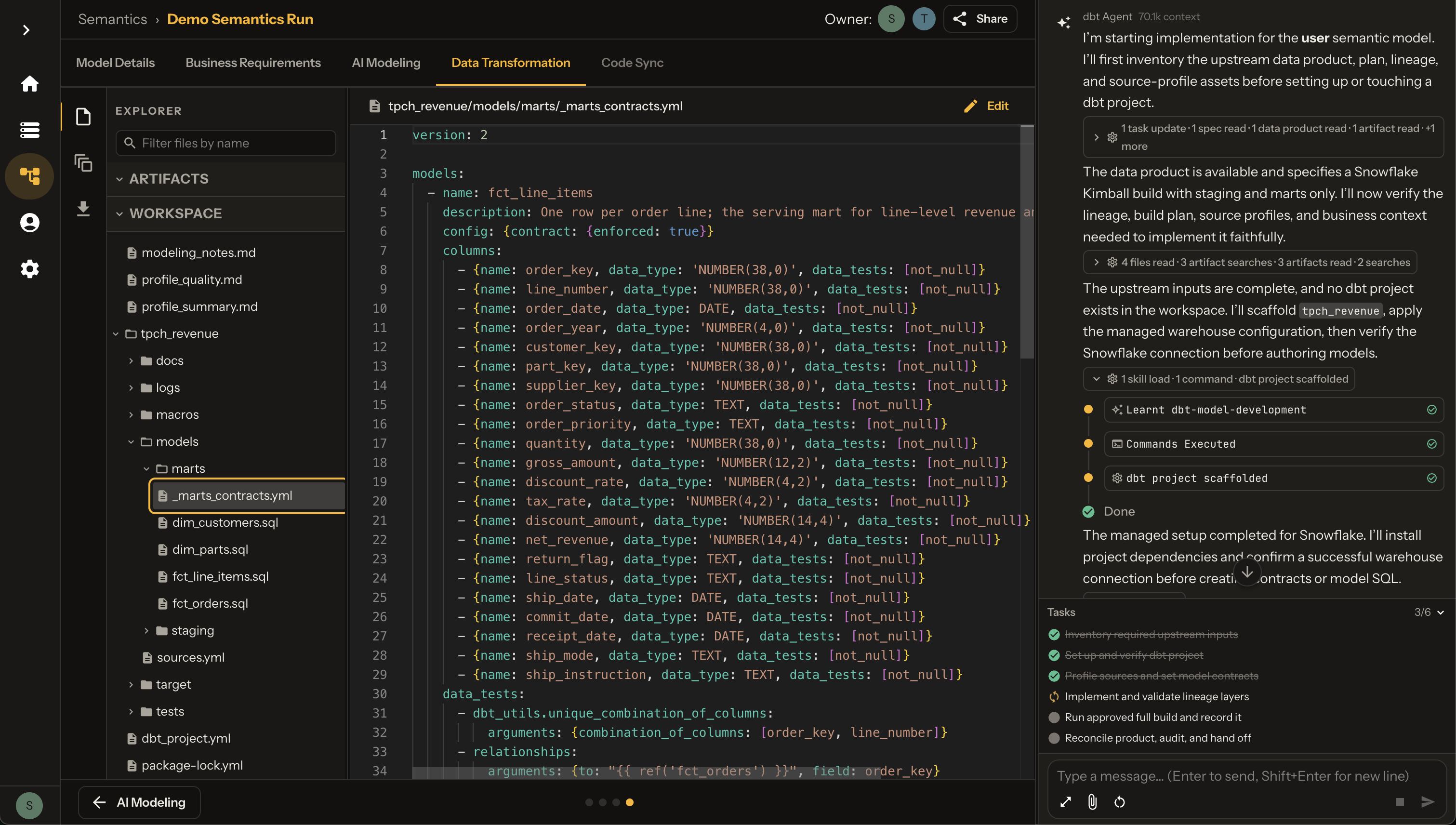
Running DBT
Execution happens through the chat experience — not a separate re-run button. The agent scaffolds the project, proposes a materialisation plan, and asks you to approve a real dbt build against your warehouse.
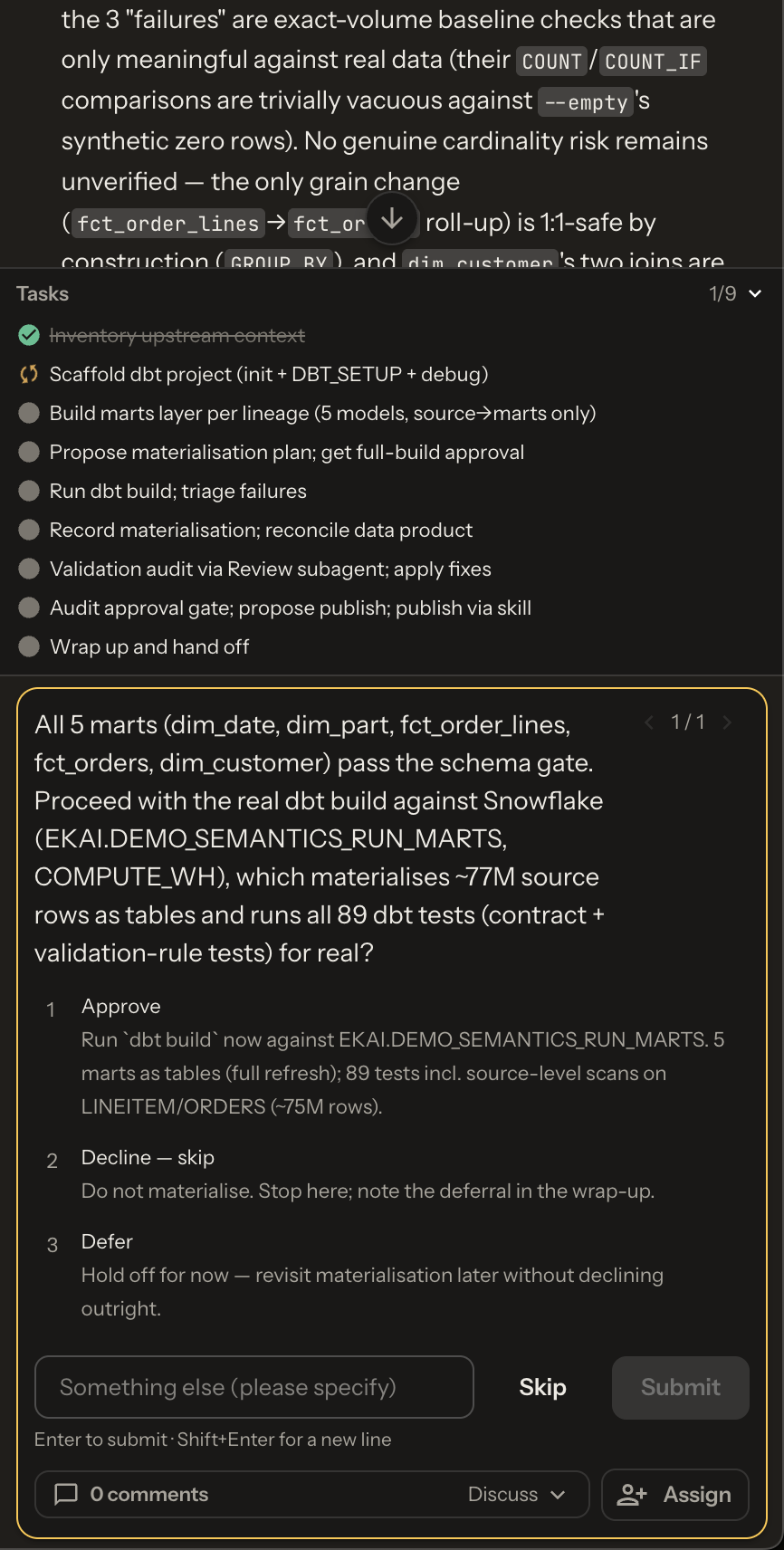
Approve in chat
When marts pass the schema gate, the agent prompts you to proceed. Typical choices:
| Option | What it does |
|---|---|
| Approve | Runs dbt build in the connected warehouse (materialize models + run tests) |
| Decline — skip | Skips materialisation and notes the deferral |
| Defer | Leaves the decision open without declining |
| Something else | Free-text guidance for the agent |
Execution process
Once approved, ekai runs the build in your warehouse:
- Compile — Generate SQL from models
- Execute — Materialize transformations
- Test — Run data validation tests
- Report — Surface results, then continue toward publish via chat
The Tasks list in chat tracks progress (inventory → scaffold → build marts → approve → run → validate → publish).
Execution Status
Success
When the build finishes, the agent reports that materialization is complete:
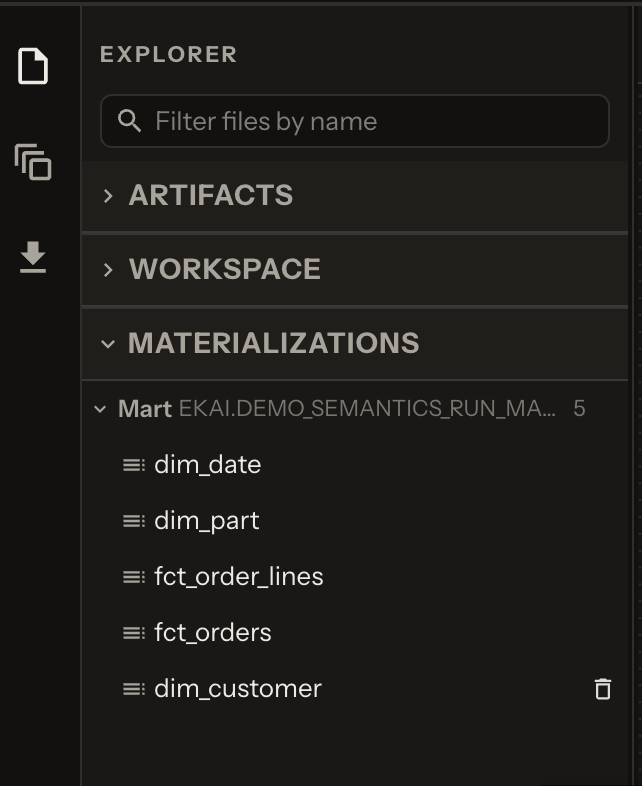
Chat then continues toward publishing for the connected platform.
Summary in chat
Models built:
  ✓ stg_tpch__line_items
  ✓ stg_tpch__orders
  ✓ fct_line_items
  ✓ fct_orders
  ✓ dim_customers
  ✓ dim_parts

Tests passed: 89/89
Chat progress during execution
While the build runs, the agent shows live task status and tool activity (commands, file writes, test triage). You can steer with follow-up messages if something needs adjustment before publish.
Handling Errors
Common Error Types
| Error | Cause | Resolution |
|---|---|---|
| Compilation Error | SQL syntax issue | AI auto-fixes and retries |
| Test Failure | Data quality issue | Review test results in chat |
| Permission Error | Missing warehouse access | Check connection credentials |
| Timeout | Large data volume | Increase warehouse size |
Auto-Fix Capability
ekai's AI Agent can automatically fix common errors:
"I encountered a compilation error in
stg_customers.sql. The issue was a missing comma in the column list. I've fixed the error and re-running the build."
Incremental Execution
For subsequent runs (requested through chat):
| Mode | Command | When to Use |
|---|---|---|
| Full Refresh | dbt run --full-refresh | First run, schema changes |
| Incremental | dbt run | Regular updates |
| Specific Model | dbt run -s model_name | Testing single model |
Results Storage
After successful execution:
| Artifact | Location |
|---|---|
| Transformed Tables | Your warehouse (configured schema) |
| Execution Logs | ekai logs directory |
| Test Results | DBT test artifacts |
| Documentation | Data catalog updated |
Warehouse Requirements
Ensure your connected warehouse has:
| Requirement | Details |
|---|---|
| Write Access | Schema where models will be created |
| Compute | Sufficient warehouse size for transformations |
| Storage | Space for materialized tables |
Schema Agents only need read access. Semantic Models need write access to execute DBT and create tables.