AI Modeling & Build
After BRD completion, ekai generates production-ready artifacts. The AI MODELING & BUILD tab contains six sub-tabs for each artifact type.
Complete the Capture Requirements step to generate your Business Requirements Document.
Artifact Sub-tabs
| Tab | Content |
|---|---|
| DATA LINEAGE | Visual diagram of data flow |
| DATA CATALOG | Table and column documentation |
| BUSINESS GLOSSARY | Term definitions |
| METRICS/KPIS | Calculated measures with SQL |
| DATA VALIDATION | dbt tests and quality rules |
| DBT PROJECT | Complete dbt project code |
Data Lineage
Visual representation of how data flows from source to output:
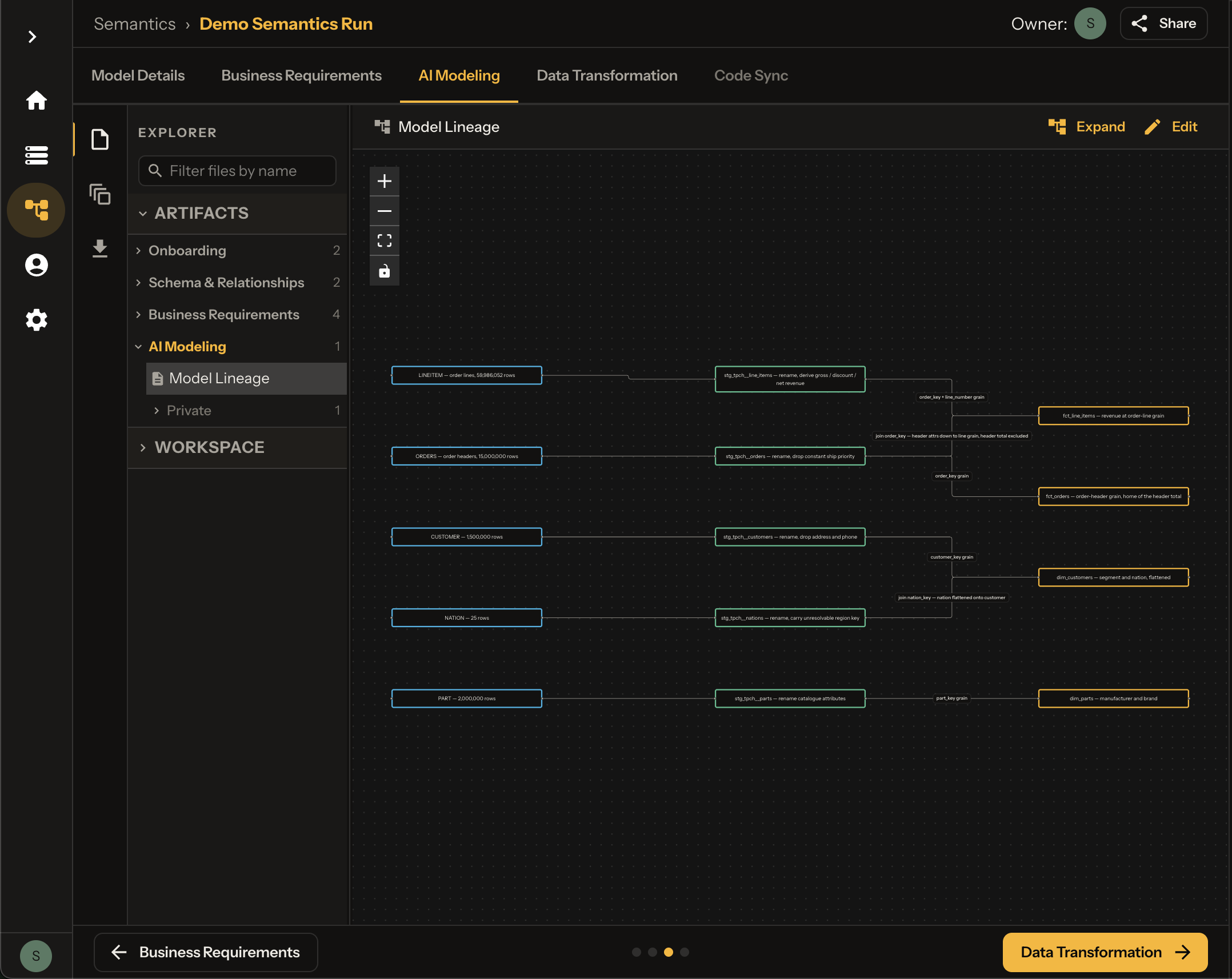
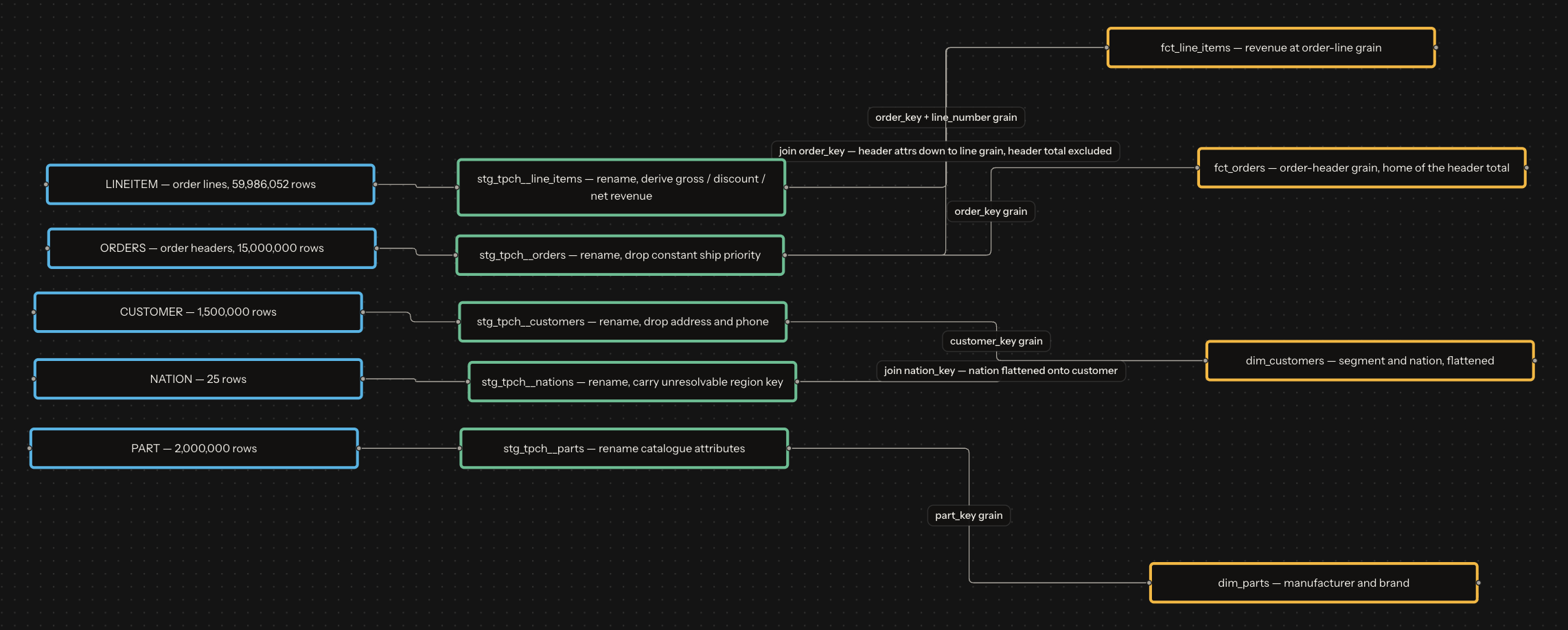
Lineage Diagram Elements
Leftmost — raw warehouse tables
Next — cleaned / renamed models
Middle — business logic transforms
Rightmost — marts and facts
Controls
- Zoom — + / - buttons
- Pan — Click and drag
- Fullscreen — Expand view
- Download — Export as image
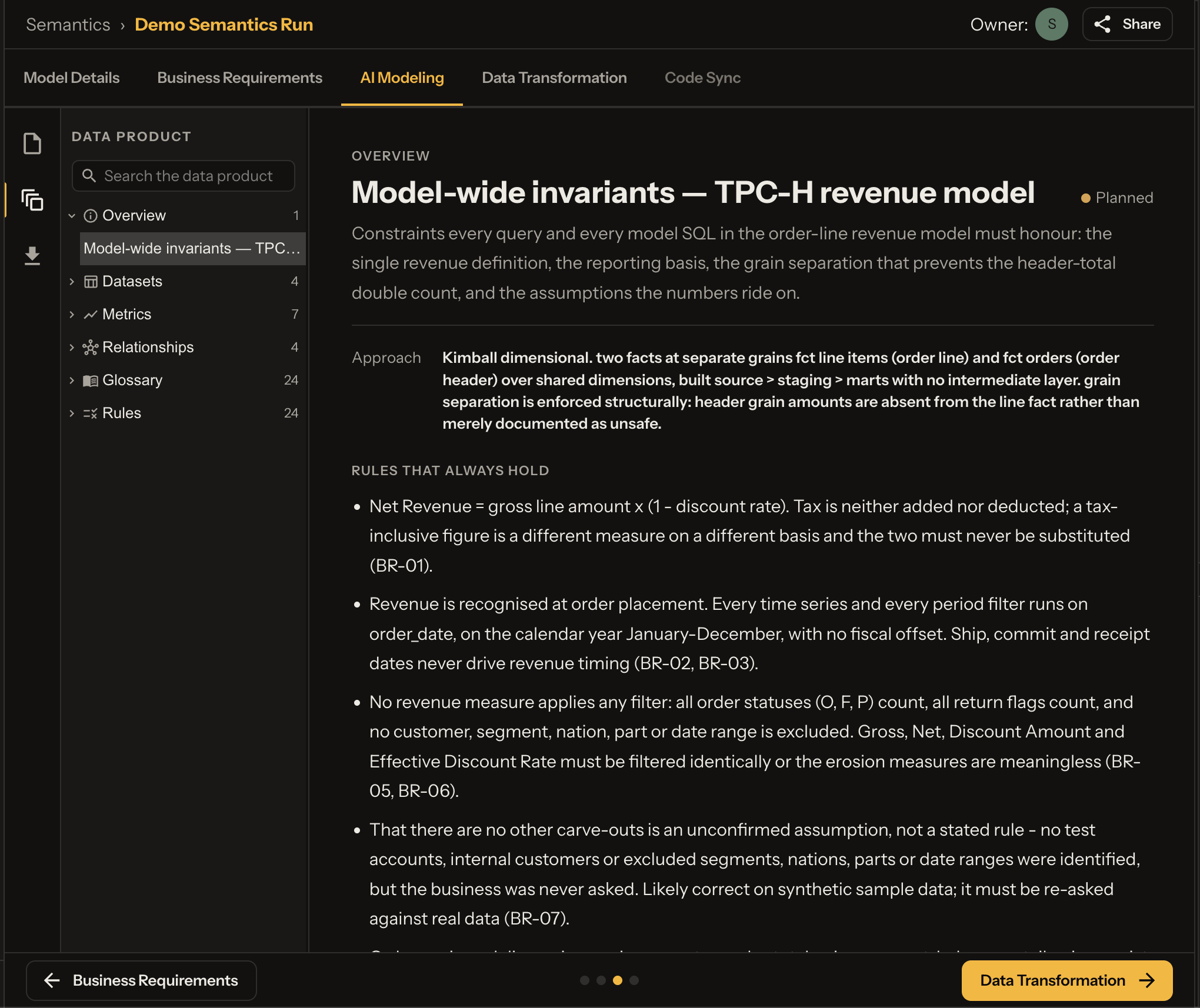
Data Product — Sample Interaction
Explore the product UI, then try the interactive sample:
Data Catalog
Auto-generated documentation for all tables and columns.
Catalog Entry Example
fct_line_items · ANALYTICS.MARTS.FCT_LINE_ITEMS
One row per order line (~60M). Primary grain for Net Revenue. PK:
order_key,line_number.
| Column | Type | Description |
|---|---|---|
| order_key | NUMBER(38,0) | Parent order; FK → fct_orders |
| line_number | NUMBER(38,0) | 1–7 within order (composite PK) |
| order_date | DATE | Revenue recognition date (from header) |
| order_year | NUMBER(4,0) | Calendar year of order_date |
| customer_key | NUMBER(38,0) | FK → dim_customers |
| part_key | NUMBER(38,0) | FK → dim_parts |
| quantity | NUMBER(38,0) | Units sold (1–50) |
| gross_amount | NUMBER(12,2) | Pre-discount line value |
| discount_rate | NUMBER(4,2) | Rate 0–0.10 — never sum |
| discount_amount | NUMBER(14,4) | gross_amount × discount_rate |
| net_revenue | NUMBER(14,4) | gross × (1 − discount) — tax excluded |
Business Glossary
Standardized term definitions for the model:
Glossary Format
| Term | Definition & Logic |
|---|---|
| Order | A purchase commitment by one customer on one date. Groups 1–7 order lines; carries its own date and status. Order-level amounts are valid only on fct_orders. |
| Order Line | One part, in one quantity, within one order — primary grain of the model and of Net Revenue. |
| Customer | An account that places orders. Belongs to exactly one nation and one market segment. |
| Market Segment | Industry classification of a customer — primary way revenue is cut in this model (five confirmed values). |
| Part | A catalogue item sold on an order line (manufacturer, brand, type, size, retail price). |
| Nation | Country a customer is based in — geographic dimension of revenue (25 nations). |
Metrics/KPIs
Calculated measures with SQL formulas:
Metrics Format
| Name | Description | Calculation |
|---|---|---|
| Net Revenue | Value realised after discount, excluding tax | SUM(net_revenue) |
| Gross Revenue | List value of goods sold before discount | SUM(gross_amount) |
| Discount Amount | Gap between gross and net revenue | SUM(discount_amount) |
| Effective Discount Rate | Discount as a share of gross value | 100.0 * SUM(discount_amount) / NULLIF(SUM(gross_amount), 0) |
| Units Sold | Total quantity across order lines | SUM(quantity) |
| Order Count | Distinct orders in the period | COUNT(DISTINCT order_key) |
| Active Customer Count | Distinct customers with ≥1 order | COUNT(DISTINCT customer_key) |
Data Validation
Quality rules implemented as dbt tests:
Validation Rule Example
Referential integrity — every order line resolves to an order
| Attribute | Value |
|---|---|
| Rule | Every order line resolves to an order |
| Category | Referential |
| Class | Build-time gate |
| Expected Result | 0 violations |
| Failure Action | Block deployment |
Implementation:
SELECT COUNT(*) AS violation_count
FROM LINEITEM l
LEFT JOIN ORDERS o ON l.L_ORDERKEY = o.O_ORDERKEY
WHERE o.O_ORDERKEY IS NULL
DBT Project
Complete dbt project with all models:
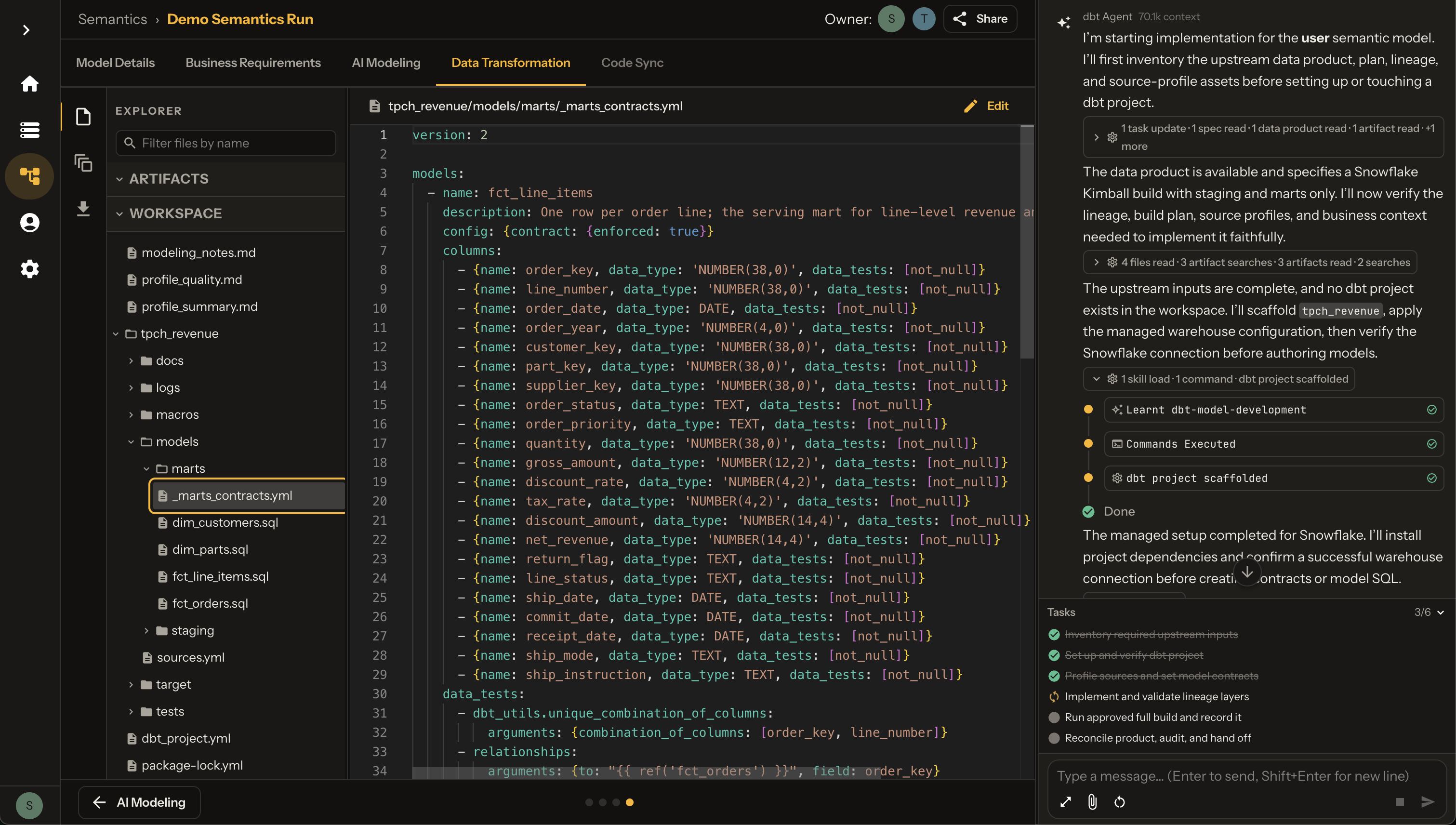
Project Structure
├── README.md
├── dbt_project.yml
├── logs/
├── macros/
├── mart_relations.json
├── models/
│   ├── intermediate/
│   ├── marts/
│   │   └── analytics/
│   │       ├── fct_line_items.sql
│   │       ├── fct_orders.sql
│   │       ├── dim_customers.sql
│   │       └── dim_parts.sql
│   └── staging/
│       └── tpch/
├── models_targets.json
├── package-lock.yml
└── packages.yml
Code View
Generated model YAML with contracts, column tests, and unit tests:
version: 2

models:
  - name: fct_line_items
    description: One row per order line; the serving mart for line-level revenue and volume measures.
    config: {contract: {enforced: true}}
    columns:
      - {name: order_key, data_type: 'NUMBER(38,0)', data_tests: [not_null]}
      - {name: line_number, data_type: 'NUMBER(38,0)', data_tests: [not_null]}
      - {name: order_date, data_type: DATE, data_tests: [not_null]}
      - {name: order_year, data_type: 'NUMBER(4,0)', data_tests: [not_null]}
      - {name: customer_key, data_type: 'NUMBER(38,0)', data_tests: [not_null]}
      - {name: part_key, data_type: 'NUMBER(38,0)', data_tests: [not_null]}
      - {name: supplier_key, data_type: 'NUMBER(38,0)', data_tests: [not_null]}
      - {name: order_status, data_type: TEXT, data_tests: [not_null]}
      - {name: order_priority, data_type: TEXT, data_tests: [not_null]}
      - {name: quantity, data_type: 'NUMBER(38,0)', data_tests: [not_null]}
      - {name: gross_amount, data_type: 'NUMBER(12,2)', data_tests: [not_null]}
      - {name: discount_rate, data_type: 'NUMBER(4,2)', data_tests: [not_null]}
      - {name: tax_rate, data_type: 'NUMBER(4,2)', data_tests: [not_null]}
      - {name: discount_amount, data_type: 'NUMBER(14,4)', data_tests: [not_null]}
      - {name: net_revenue, data_type: 'NUMBER(14,4)', data_tests: [not_null]}
      - {name: return_flag, data_type: TEXT, data_tests: [not_null]}
      - {name: line_status, data_type: TEXT, data_tests: [not_null]}
      - {name: ship_date, data_type: DATE, data_tests: [not_null]}
      - {name: commit_date, data_type: DATE, data_tests: [not_null]}
      - {name: receipt_date, data_type: DATE, data_tests: [not_null]}
      - {name: ship_mode, data_type: TEXT, data_tests: [not_null]}
      - {name: ship_instruction, data_type: TEXT, data_tests: [not_null]}
    data_tests:
      - dbt_utils.unique_combination_of_columns:
          arguments: {combination_of_columns: [order_key, line_number]}
      - relationships:
          arguments: {to: "{{ ref('fct_orders') }}", field: order_key}
      - relationships:
          arguments: {to: "{{ ref('dim_parts') }}", field: part_key}
  - name: fct_orders
    description: One row per order header; the only mart that carries order_total_price.
    config: {contract: {enforced: true}}
    columns:
      - {name: order_key, data_type: 'NUMBER(38,0)', data_tests: [not_null, unique]}
      - {name: customer_key, data_type: 'NUMBER(38,0)', data_tests: [not_null]}
      - {name: order_date, data_type: DATE, data_tests: [not_null]}
      - {name: order_year, data_type: 'NUMBER(4,0)', data_tests: [not_null]}
      - {name: order_status, data_type: TEXT, data_tests: [not_null]}
      - {name: order_priority, data_type: TEXT, data_tests: [not_null]}
      - {name: clerk, data_type: TEXT, data_tests: [not_null]}
      - {name: order_total_price, data_type: 'NUMBER(12,2)', data_tests: [not_null]}
    data_tests:
      - relationships:
          arguments: {to: "{{ ref('dim_customers') }}", field: customer_key}
  - name: dim_customers
    description: One row per customer, with flattened nation attributes.
    config: {contract: {enforced: true}}
    columns:
      - {name: customer_key, data_type: 'NUMBER(38,0)', data_tests: [not_null, unique]}
      - {name: customer_name, data_type: TEXT, data_tests: [not_null]}
      - name: market_segment
        data_type: TEXT
        data_tests:
          - not_null
          - accepted_values:
              arguments: {values: ['BUILDING', 'MACHINERY', 'HOUSEHOLD', 'AUTOMOBILE', 'FURNITURE']}
      - {name: nation_key, data_type: 'NUMBER(38,0)', data_tests: [not_null]}
      - {name: nation_name, data_type: TEXT, data_tests: [not_null]}
      - {name: nation_region_key, data_type: 'NUMBER(38,0)', data_tests: [not_null]}
      - {name: account_balance, data_type: 'NUMBER(12,2)', data_tests: [not_null]}
  - name: dim_parts
    description: One row per part catalogue item.
    config: {contract: {enforced: true}}
    columns:
      - {name: part_key, data_type: 'NUMBER(38,0)', data_tests: [not_null, unique]}
      - {name: part_name, data_type: TEXT, data_tests: [not_null]}
      - {name: manufacturer, data_type: TEXT, data_tests: [not_null]}
      - {name: brand, data_type: TEXT, data_tests: [not_null]}
      - {name: part_type, data_type: TEXT, data_tests: [not_null]}
      - {name: container, data_type: TEXT, data_tests: [not_null]}
      - {name: part_size, data_type: 'NUMBER(38,0)', data_tests: [not_null]}
      - {name: retail_price, data_type: 'NUMBER(12,2)', data_tests: [not_null]}

unit_tests:
  - name: uses_header_order_date_and_excludes_order_total_price
    model: fct_line_items
    given:
      - input: ref('stg_tpch__line_items')
        rows:
          - {order_key: 1, line_number: 1, part_key: 10, supplier_key: 100, quantity: 3, gross_amount: 123.45, discount_rate: 0.05, tax_rate: 0.08, discount_amount: 6.1725, net_revenue: 117.2775, return_flag: N, line_status: O, ship_date: '1992-01-03', commit_date: '1992-01-02', receipt_date: '1992-01-05', ship_mode: MAIL, ship_instruction: NONE}
      - input: ref('stg_tpch__orders')
        rows:
          - {order_key: 1, customer_key: 1000, order_status: O, order_total_price: 126.66, order_date: '1992-01-01', order_priority: 1-URGENT, clerk: Clerk#000000001}
    expect:
      rows:
        - {order_key: 1, line_number: 1, order_date: '1992-01-01', order_year: 1992, customer_key: 1000, part_key: 10, supplier_key: 100, order_status: O, order_priority: 1-URGENT, quantity: 3, gross_amount: 123.45, discount_rate: 0.05, tax_rate: 0.08, discount_amount: 6.1725, net_revenue: 117.2775, return_flag: N, line_status: O, ship_date: '1992-01-03', commit_date: '1992-01-02', receipt_date: '1992-01-05', ship_mode: MAIL, ship_instruction: NONE}
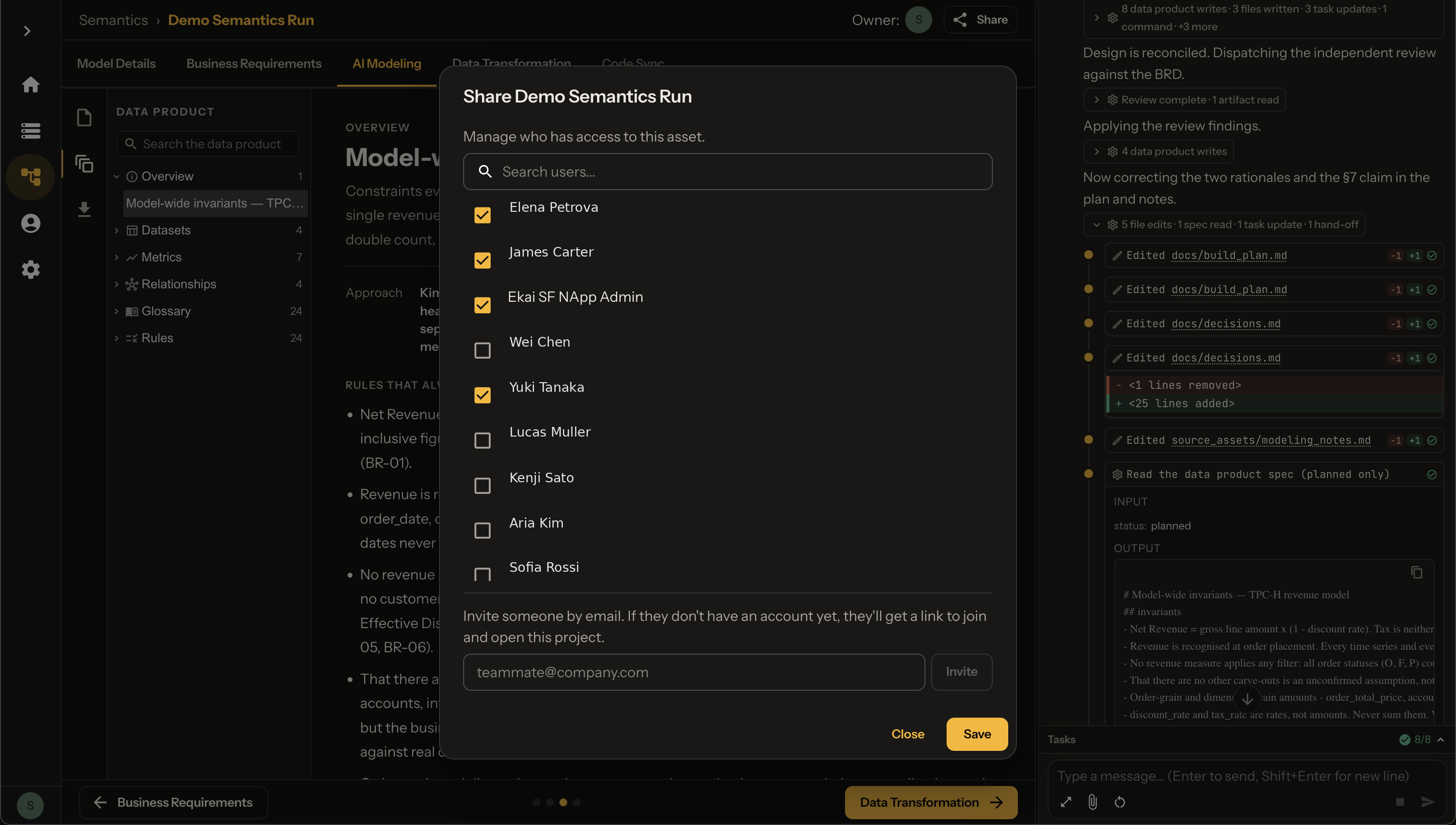
Share with Collaborators
Use the Share button to add team members:
Next Steps
- Execute DBT — Build and run the project
- Publish — Publish via chat to your platform