Create Model
Start by creating a new Semantic Model with basic information, connecting to a Schema Agent, and uploading context documents.
Before creating a Semantic Model, you need a completed Schema Agent with a generated ERD.
Create a New Model
- Navigate to Semantic Models in the sidebar
- Click + Create Semantic Model
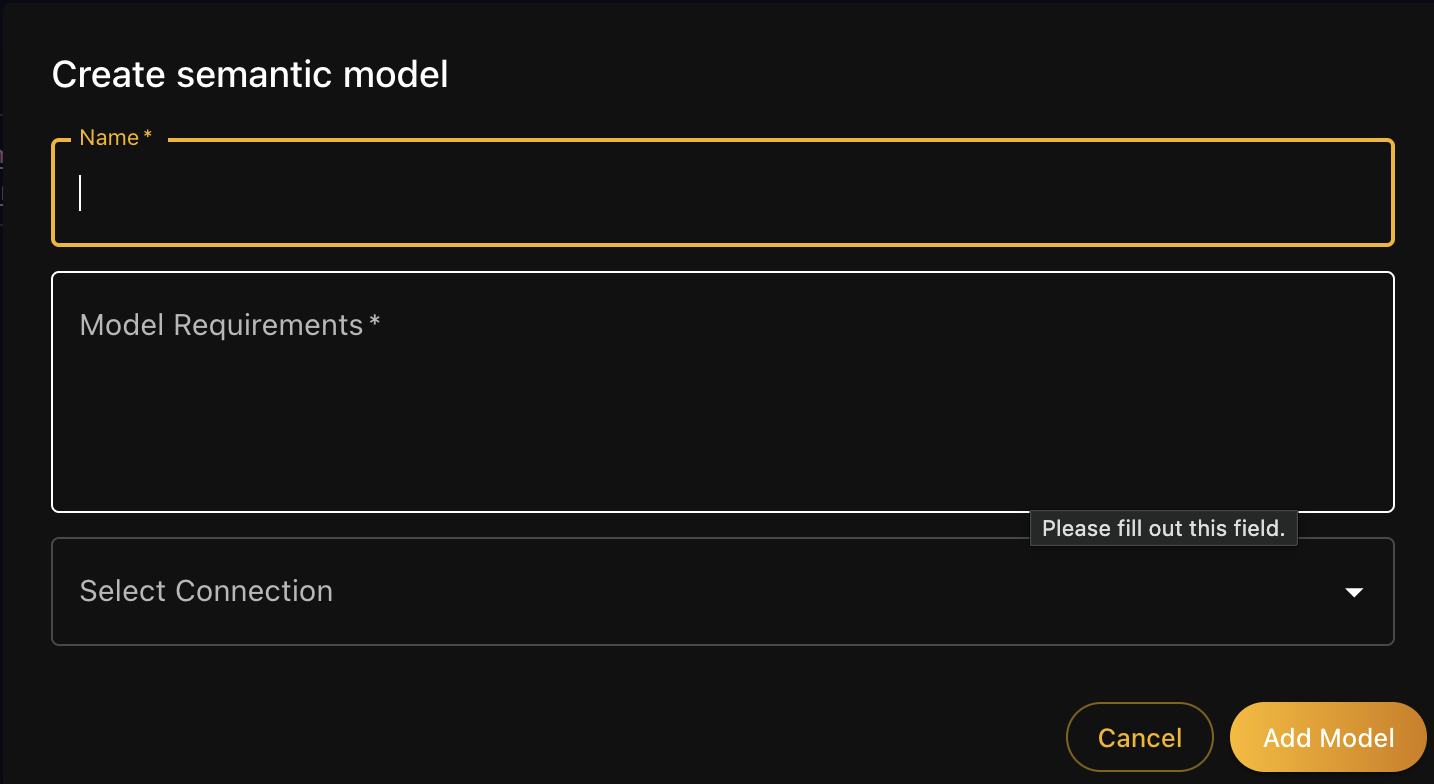
Model Setup
Required Information
| Field | Description | Example |
|---|---|---|
| Name | Unique identifier for the model | Customer_Card_Activation_Tracker |
| Model Requirements | Brief description of the analytics purpose | "Tracks card activation rates by customer segment" |
| Select Connection | Link to a Schema Agent ERD | BalticBridgeBankData |
Names must begin with a letter or underscore and can only contain letters, numbers, underscores, and dollar signs.
Model Details Tab
After creation, the MODEL DETAILS tab allows you to:
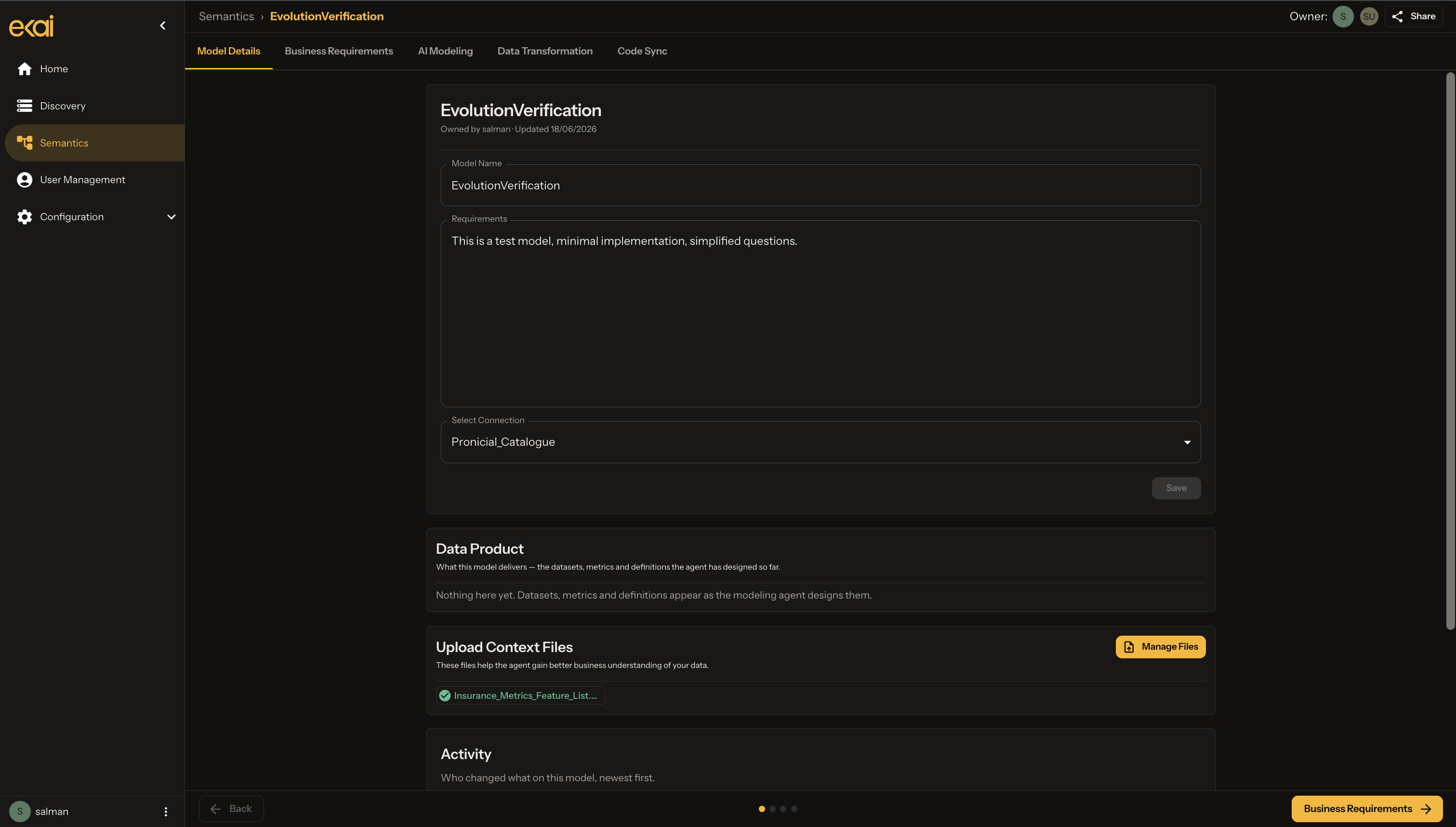
Configure Model
| Setting | Description |
|---|---|
| Model Name | Edit the model identifier |
| Requirements | Detailed business requirements description |
| Connection | Schema Agent providing the ERD |
| Context Files | Upload supporting documents |
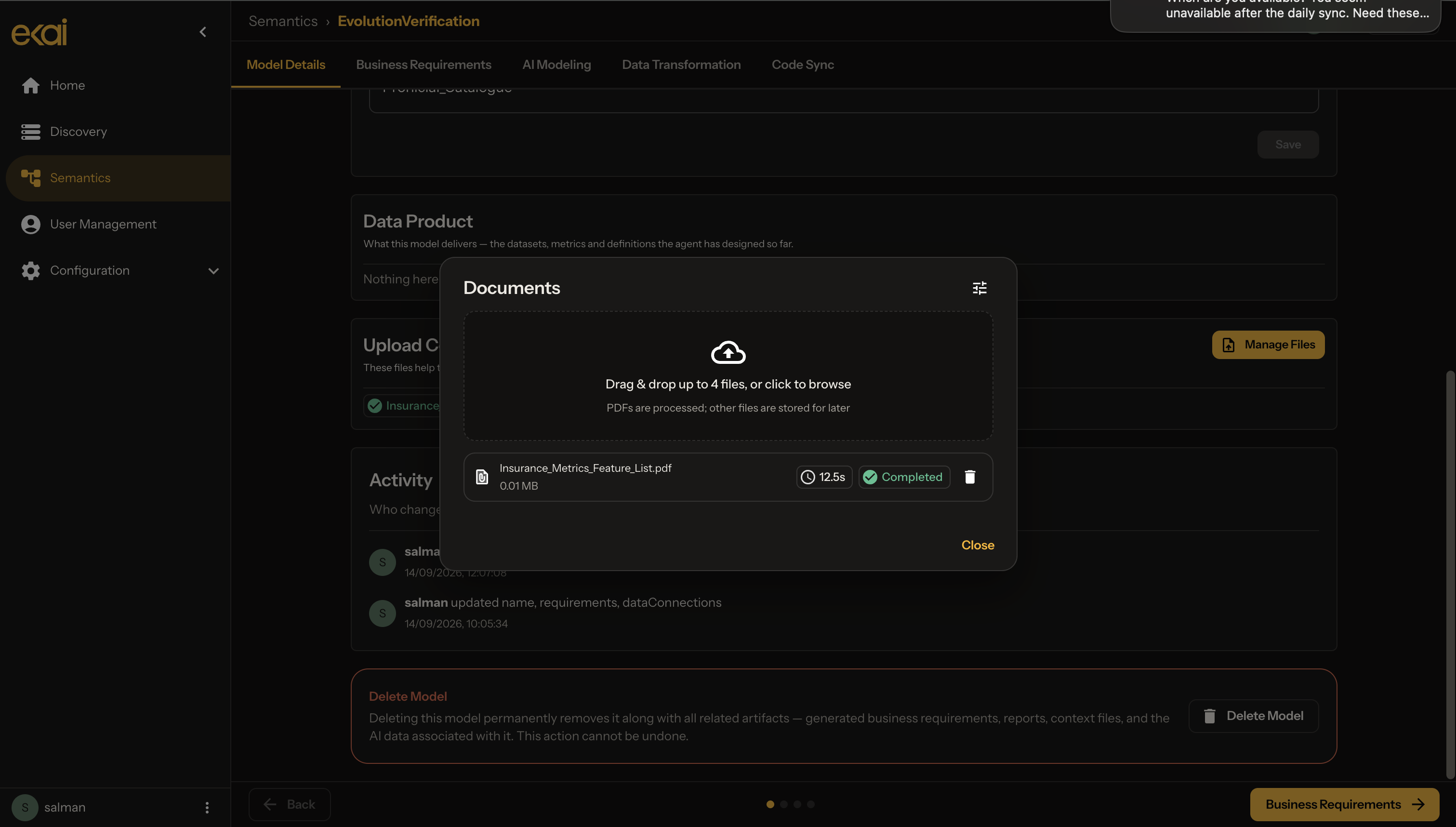
Upload Context Documents
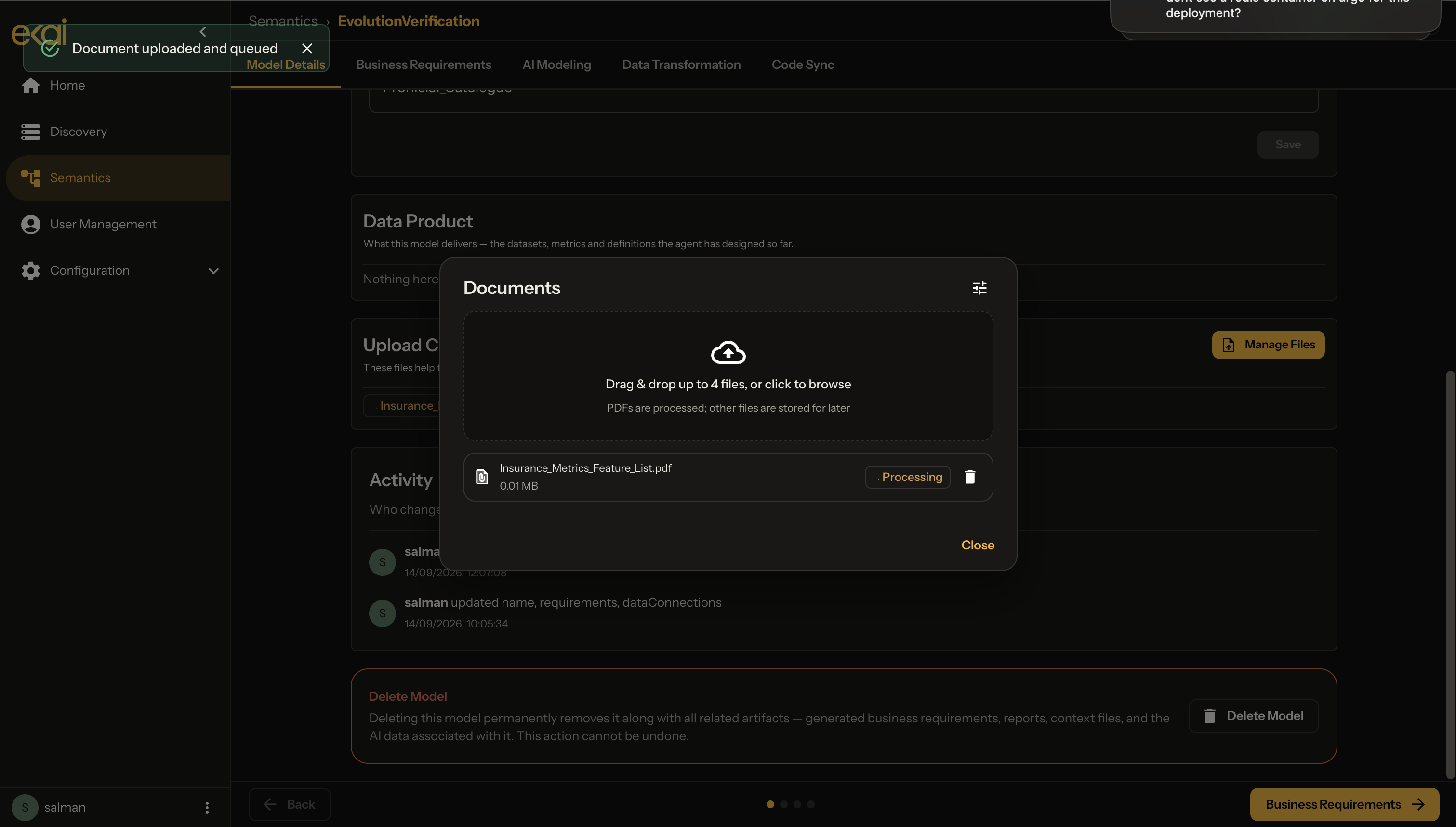
Add business context to improve BRD generation:
Only PDF files are allowed. Maximum file size is 20MB.
What to Upload
Good context documents include:
- Business requirements documents — Existing BRDs or project specs
- Data dictionaries — Column definitions and business rules
- Glossaries — Standard term definitions
- Architecture diagrams — System documentation
- Sample reports — Expected output examples
Upload Status
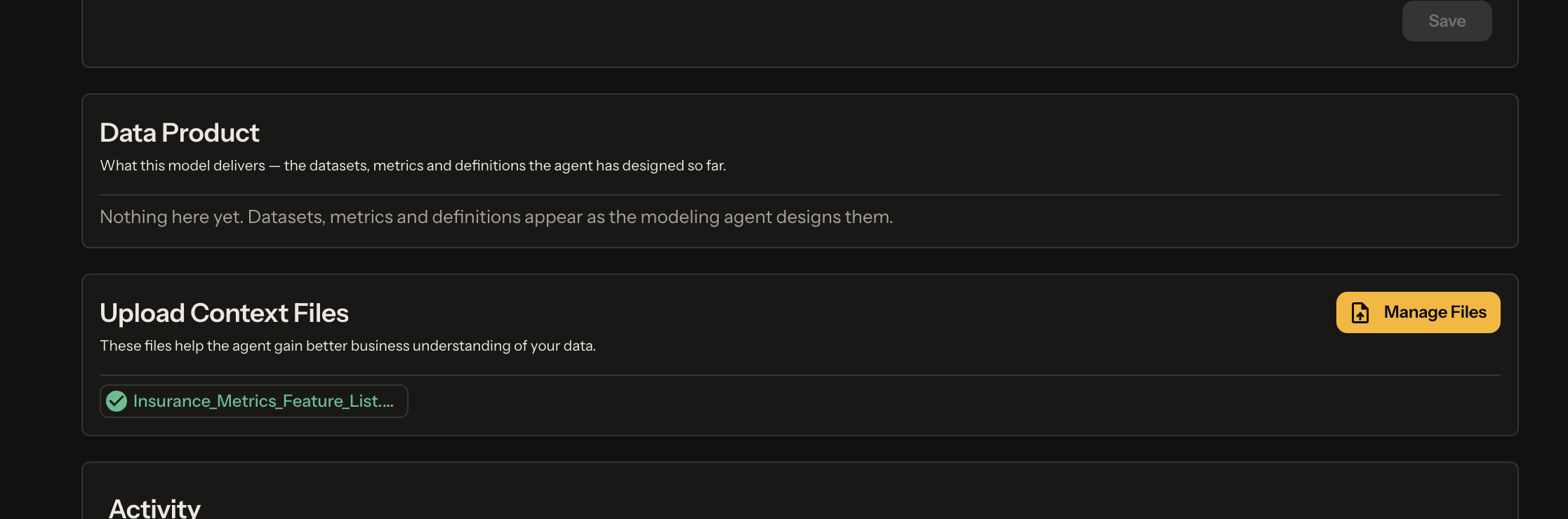
Manage context documents from Model Details:
- Remove existing attachments
- Add new documents
- Wait for uploads to complete
- Review attached documents on the main page
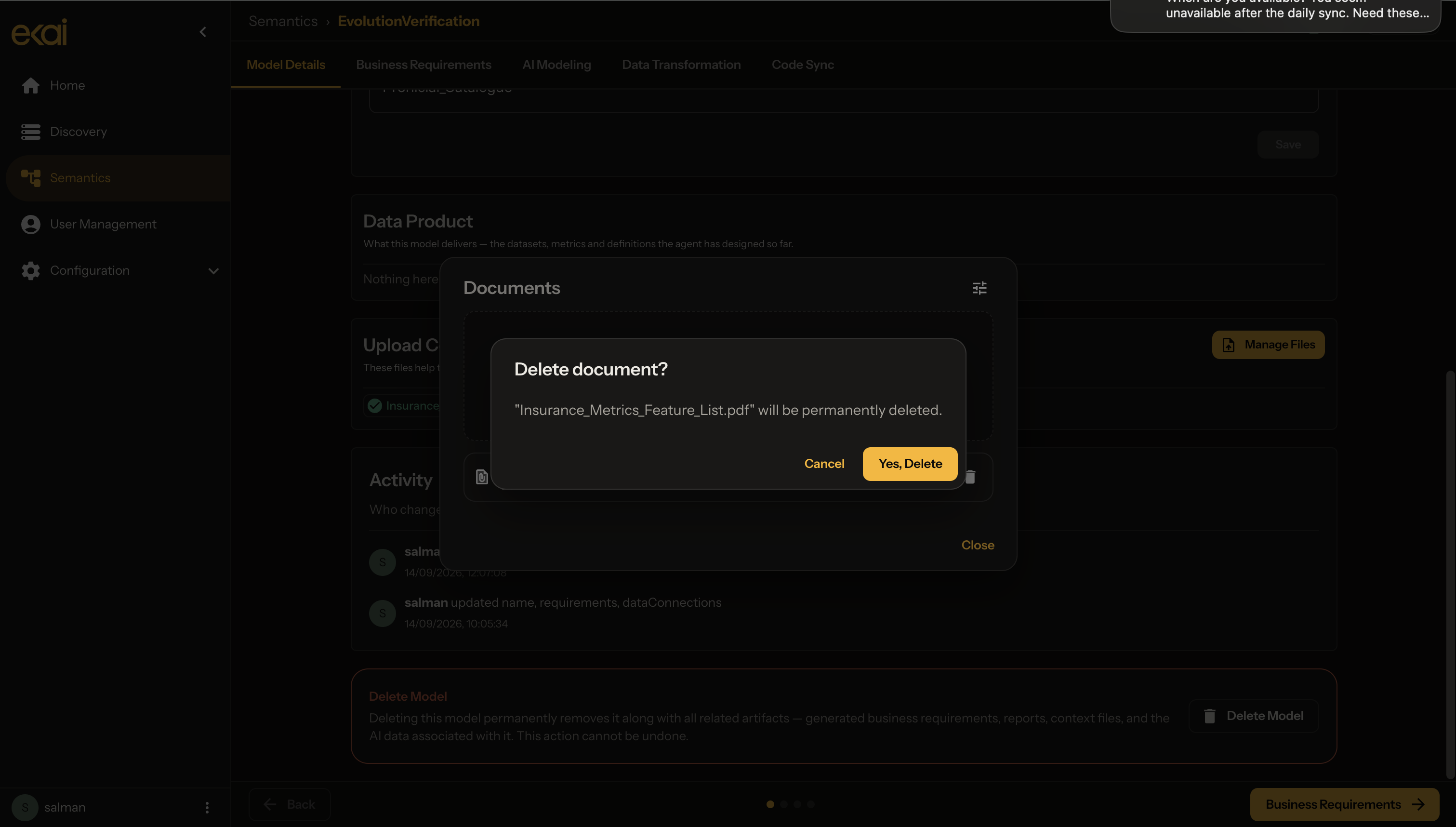
| Status | Meaning |
|---|---|
| Uploading | File being processed |
| COMPLETED | Successfully uploaded |
| Error | Upload failed, retry needed |
Connection Selection
The connection dropdown shows Schema Agents with completed ERDs:
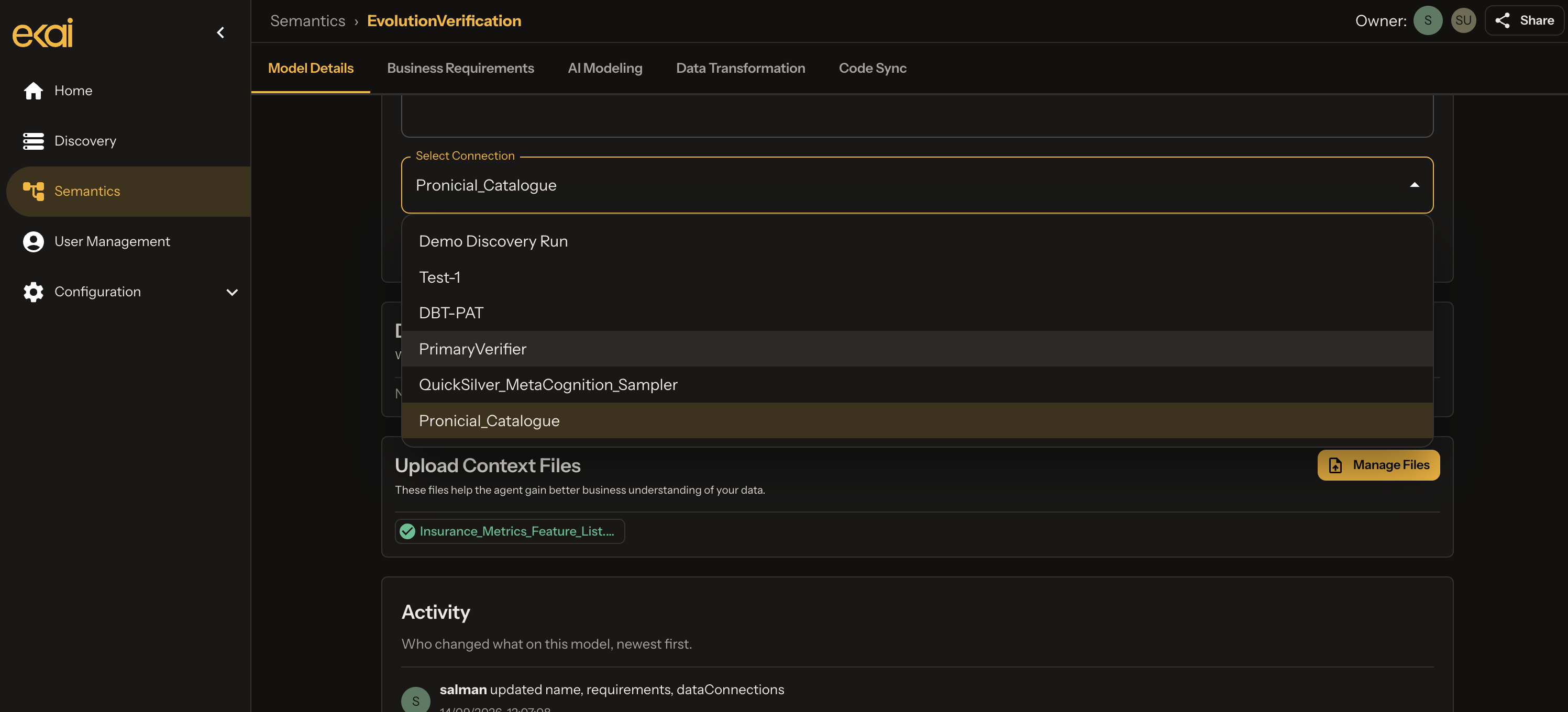
The selected Schema Agent must have a completed ERD. Incomplete connections won't appear in the list.
Save and Continue
After configuring the model:
- Click Save to store your settings
- Navigate to BUSINESS REQUIREMENTS tab
- Begin the BRD Agent interview
Model Ownership
Each Semantic Model has:
| Role | Capability |
|---|---|
| Owner | Full access, can delete model |
| Collaborators | Can edit and contribute |
| Viewers | Read-only access |
Use the Share button to manage access:
Owner: HA Shared with: JD, MK
Next Steps
- Capture Requirements — BRD Agent interview
- AI Modeling — View generated artifacts