Statistical Profiling
ekai performs full-column statistical profiling on your data—no sampling. This analysis runs in-place within your warehouse and powers the AI's key detection algorithms.
Create a connection to your data warehouse.
Profiling Overview
ekai automatically profiles all selected tables after connection:
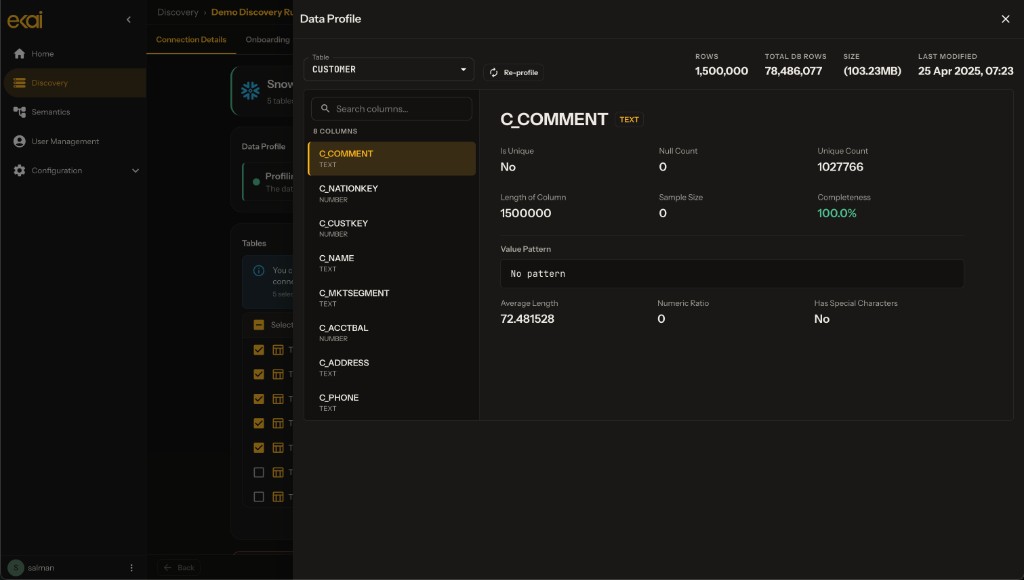
Profile Tab Navigation
The PROFILE tab shows:
| Element | Description |
|---|---|
| Total Rows | Sum of all rows across profiled tables |
| Table Tabs | Navigate between tables |
| Usage Context | Row count, data volume, last modified |
| Column Analysis | Detailed statistics per column |
Table-Level Metrics
For each table, ekai displays:
Row Count
Total rows in the table
Data Volume
Approximate size in MB/GB
Last Modified
When data was last updated
Column-Level Analysis
Click on any column to see detailed statistics:
What Gets Analyzed
ekai analyzes schema metadata and statistical properties to understand your data structure:
- Data types — Column types and formats
- Schema patterns — Table and column naming conventions
- Statistical properties — Aggregated characteristics for AI analysis
- Relationships — Connections between tables
All analysis runs in your warehouse. Only statistical summaries are transferred—never raw data.
How Profiling Powers Key Detection
ekai uses AI to analyze your schema and data patterns, combining multiple signals to accurately detect primary and foreign keys with confidence scores.
Re-Running Profiles
To refresh statistics after data changes:
- Click Restart Profiling button (top right)
- Wait for profiling to complete
- New statistics are used for ERD generation
Privacy & Security
| Aspect | Guarantee |
|---|---|
| Data Location | Queries run in your warehouse |
| Data Transfer | Only statistics transferred, not raw data |
| Storage | Statistical features stored, not source data |
| Encryption | TLS 1.3 for all transfers |
Next Steps
- Generate ERD — Create the Entity Relationship Diagram
- Review Relationships — Refine with AI chat