Installation
The Private Preview app must be enabled for your Snowflake account by the Ekai team before installation. Please reach out to us at sales@ekai.ai or support@ekai.ai to get started.
Setting Up the Native App
1. Share Your Account Identifier
Share your organization's account identifier and region with the Ekai team so they can grant access to the Native App.
-
Log in to Snowsight and click your profile at the bottom right.
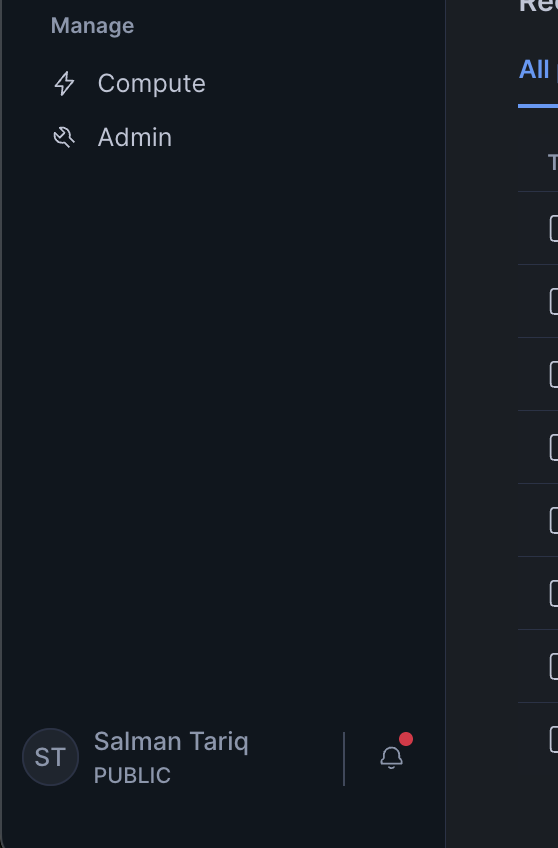
-
Navigate to Account → Account Details. Note your region (e.g. US East / N. Virginia). Copy and send this to ekai.
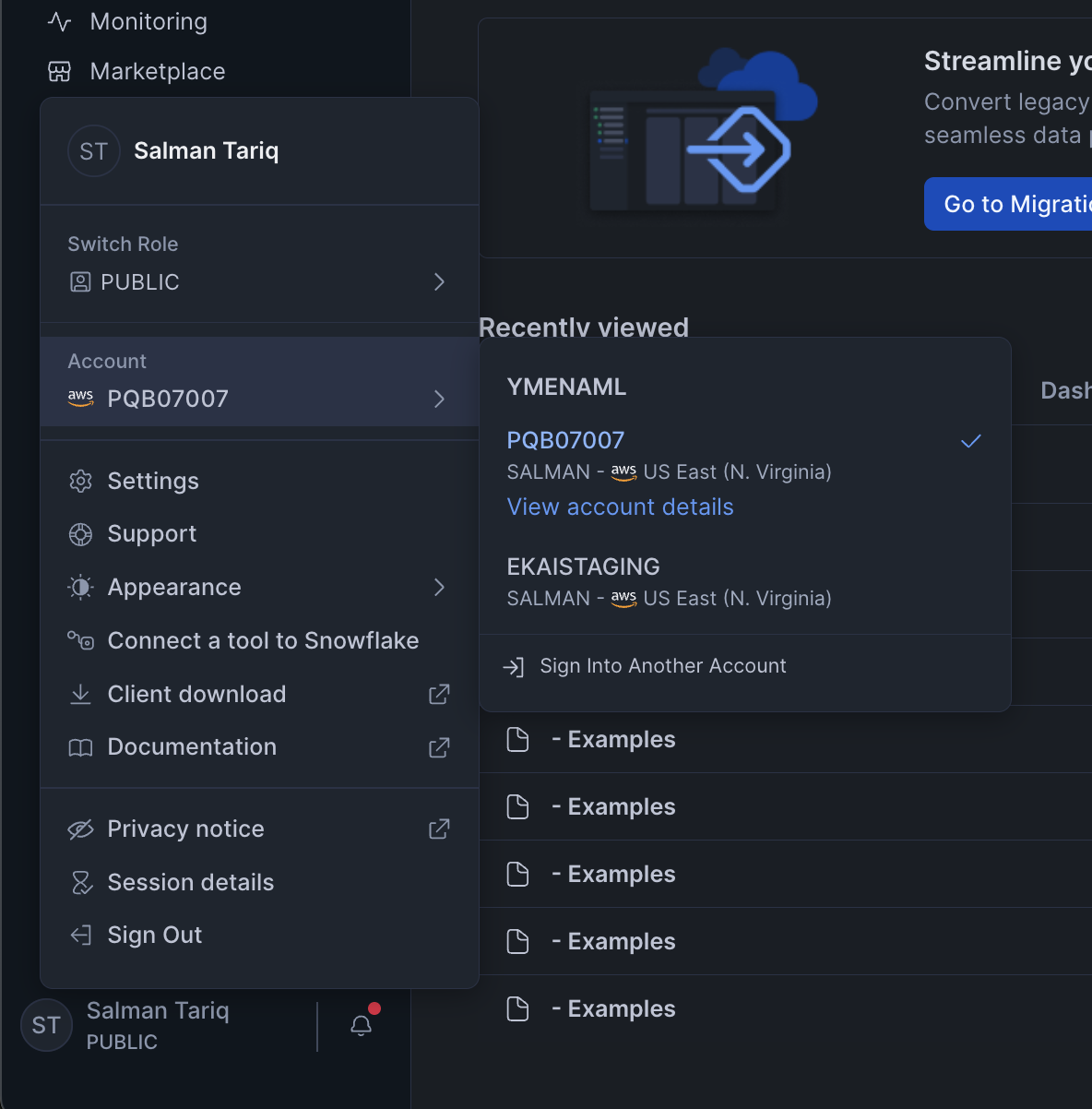
-
A detailed popup will appear. Copy and relay the highlighted fields to ekai.
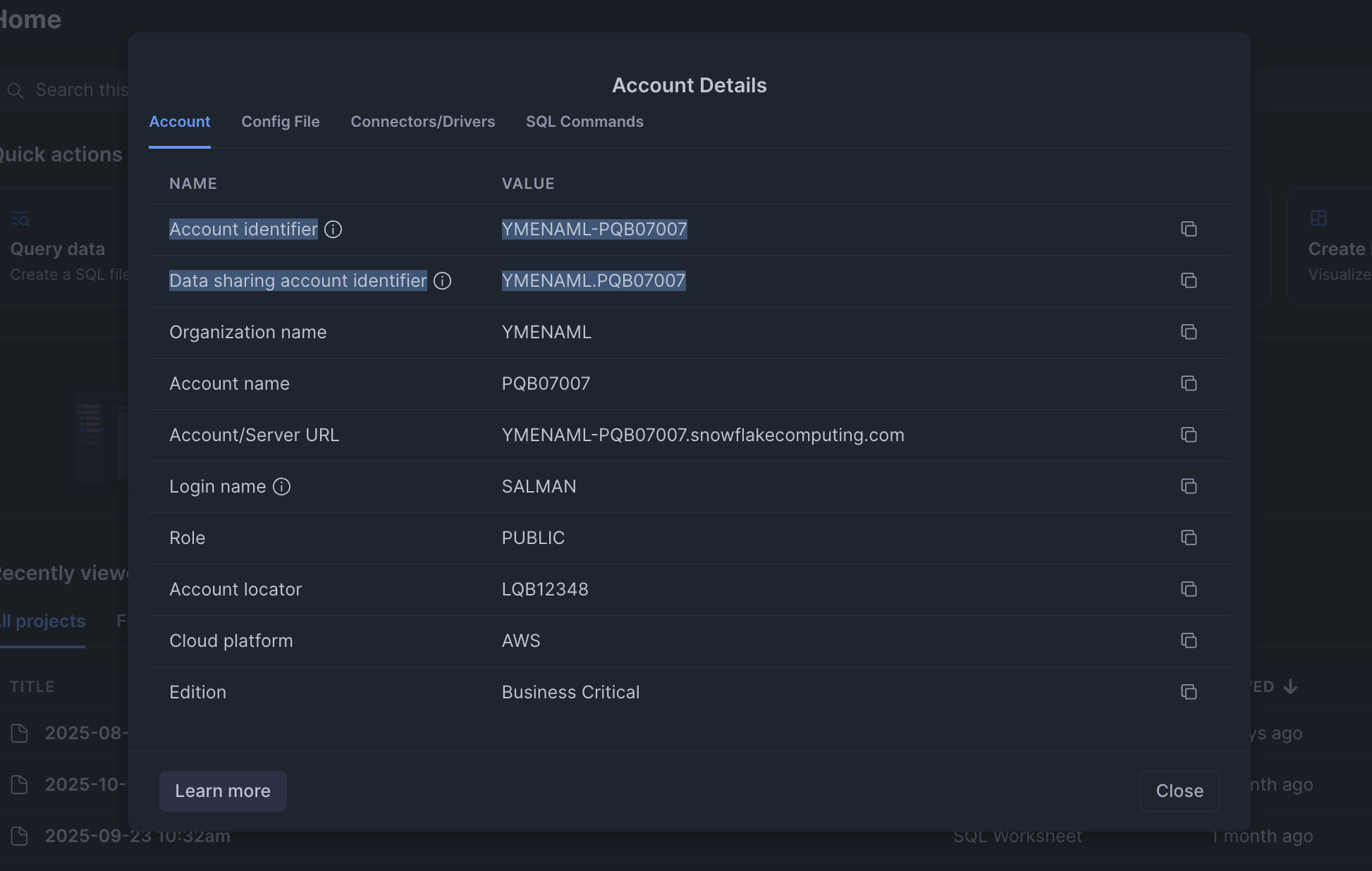
Once shared, Ekai will make the app package available and you can proceed with installation.
2. Request the Application
-
Ensure your user has the ACCOUNTADMIN role selected. If needed, you may switch roles by clicking your profile → your user.
-
As ACCOUNTADMIN, navigate to Data Sharing → Private Sharing. The native app package will appear under the Shared with you tab. Alternatively, from the main side menu, you may click on "Catalog" and then "Apps".
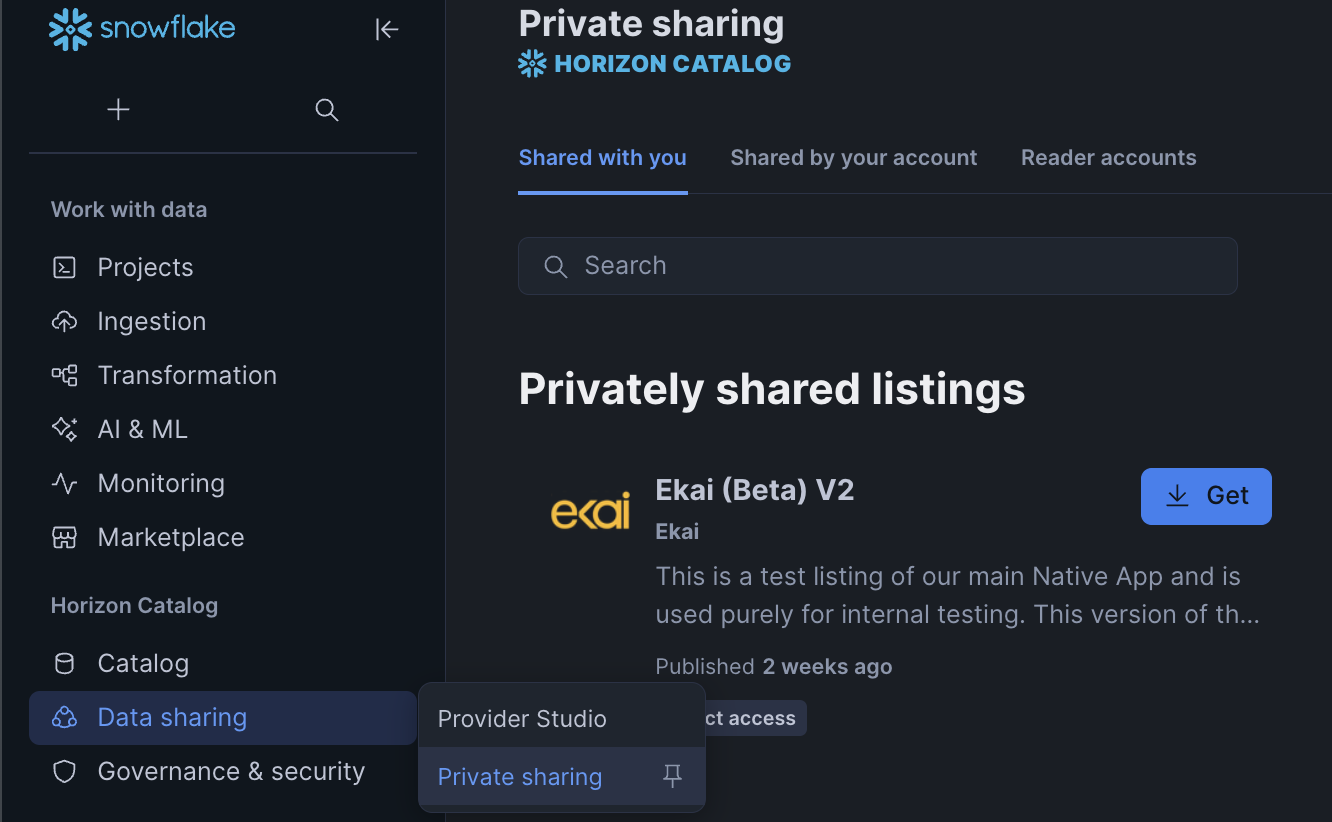
-
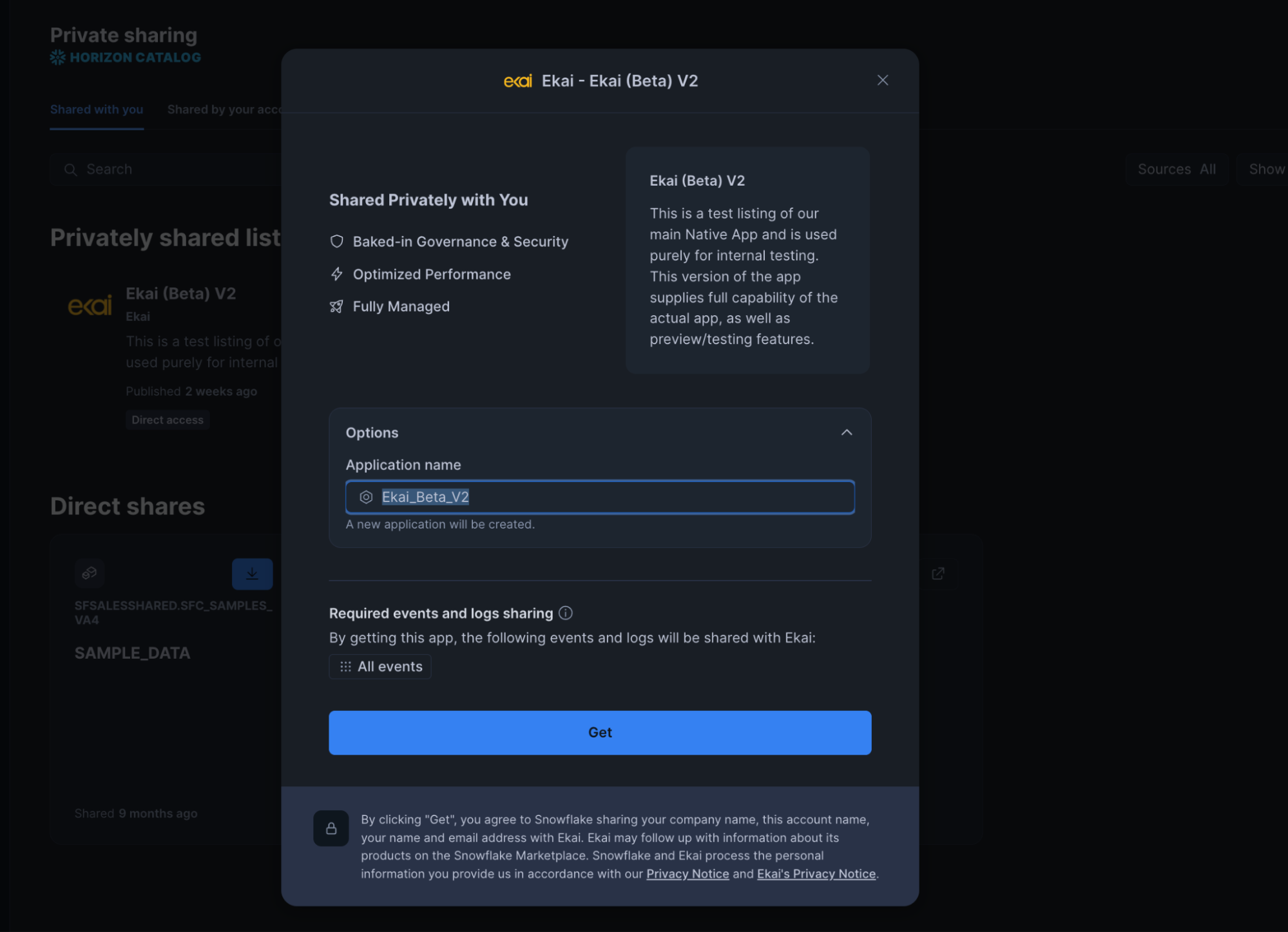
Click Get. An information popup will appear for your review. These outline the standard features the app will be using. You should click on “Agree and continue”, which will begin the app acquisition process. You may be asked to confirm your email address by snowflake.
3. Install
-
Click Get. An information popup will outline the standard features the app uses. Click Agree and continue, then click Get to begin installation.
-
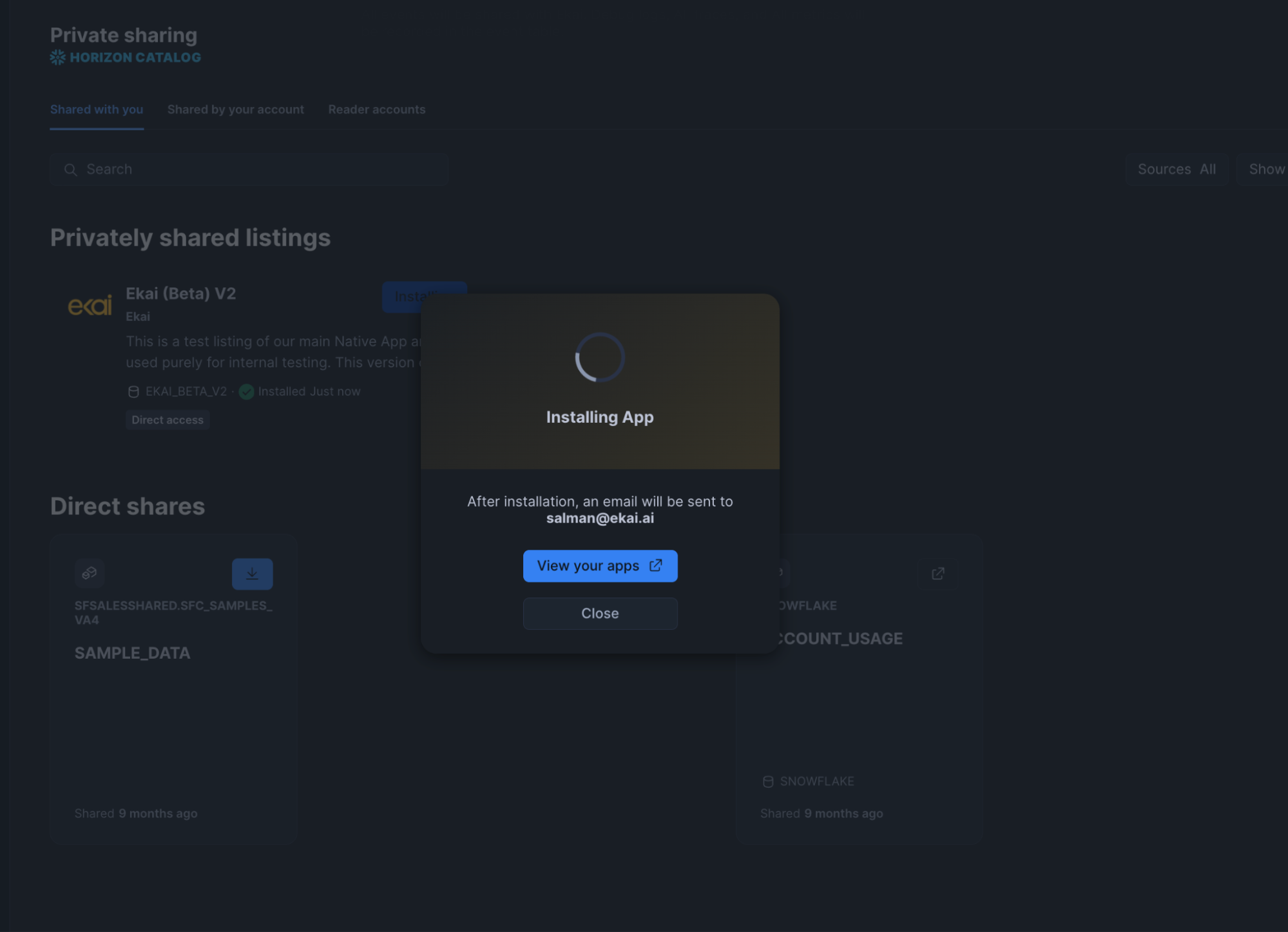
Wait while the app installs. This can take up to 3 minutes.
-
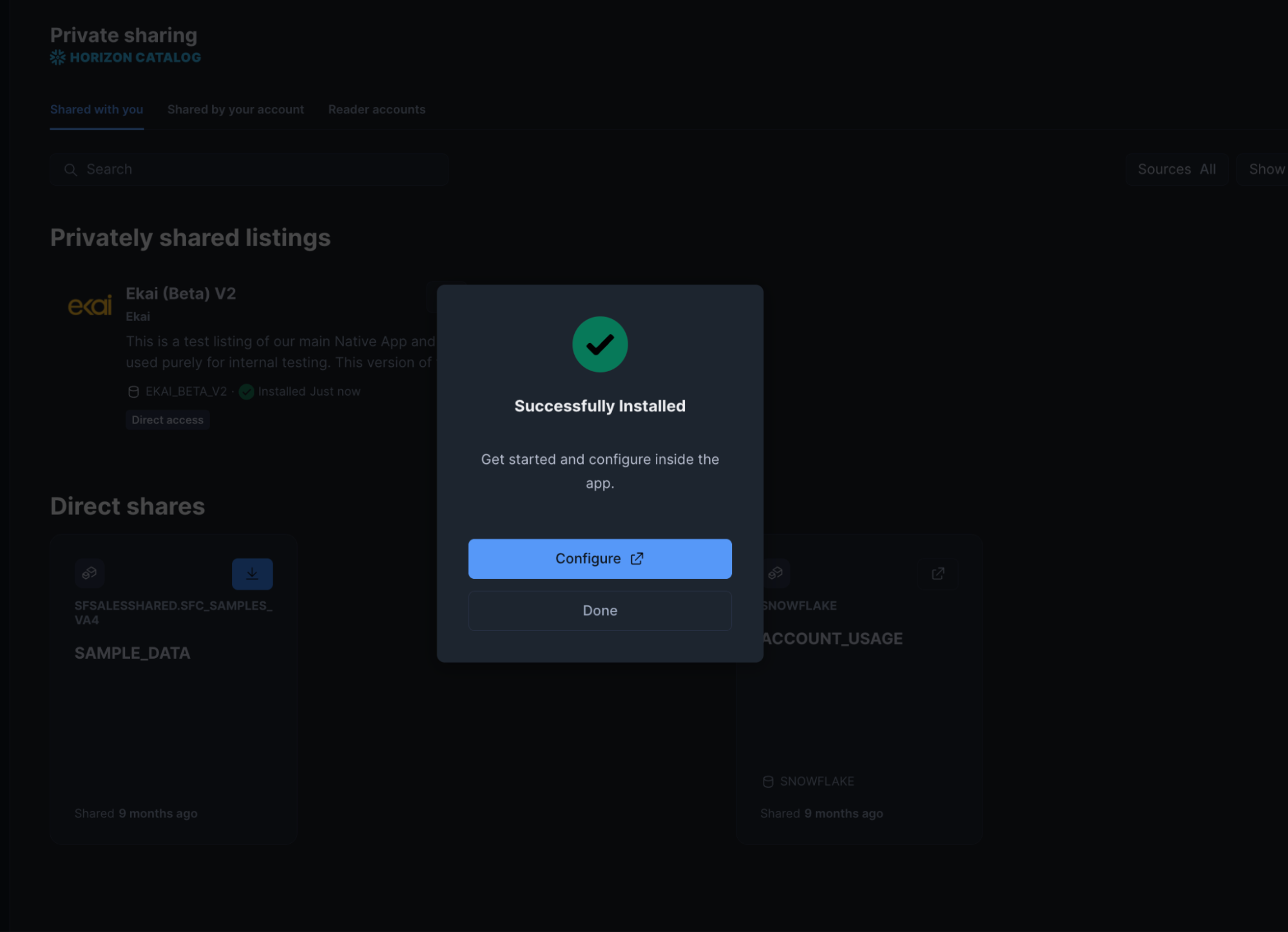
After installation, click Configure.
-
On the configuration screen, ensure ACCOUNTADMIN is selected at the top right, then grant External Access Integration.
 App does not auto-start after EAI approval
After approving the External Access Integration, the app will not automatically activate. This is intentional — services are not auto-started to avoid unexpected costs from background upgrades silently resuming services.
To start the app, run the following stored procedure in a Snowflake worksheet:
CALL ekai_private_preview.ekai_native_app_public.resume_all_services(); -
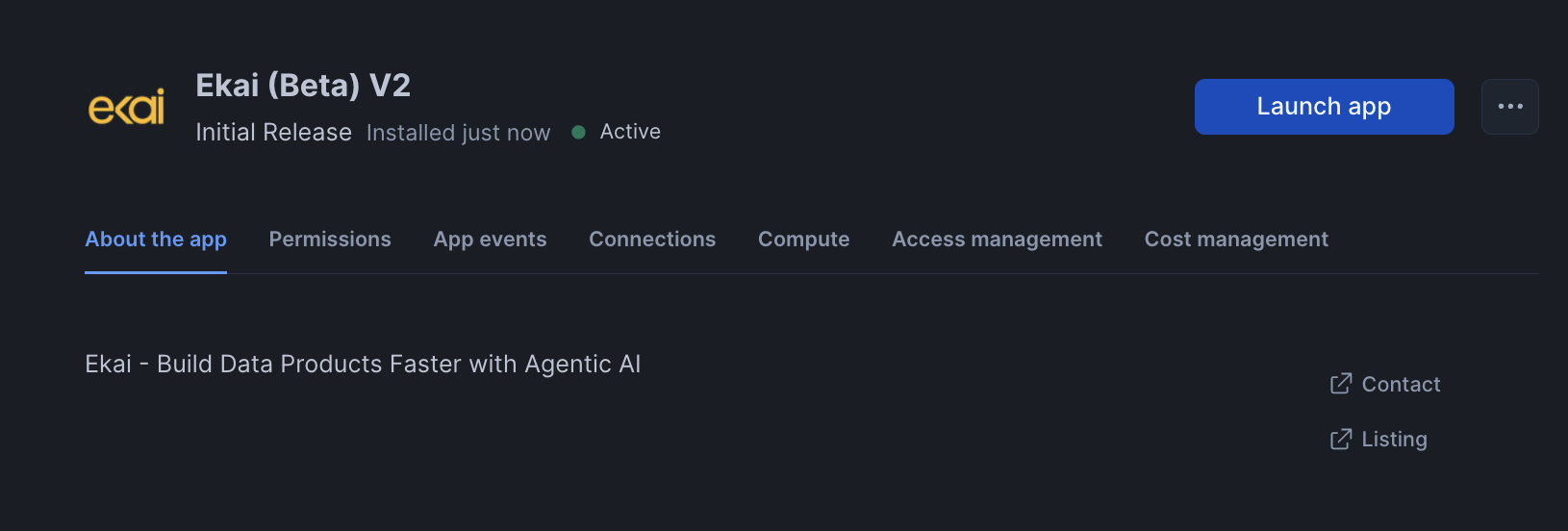
Finally, click Launch App to start using Ekai.
Preparing Your App User
-
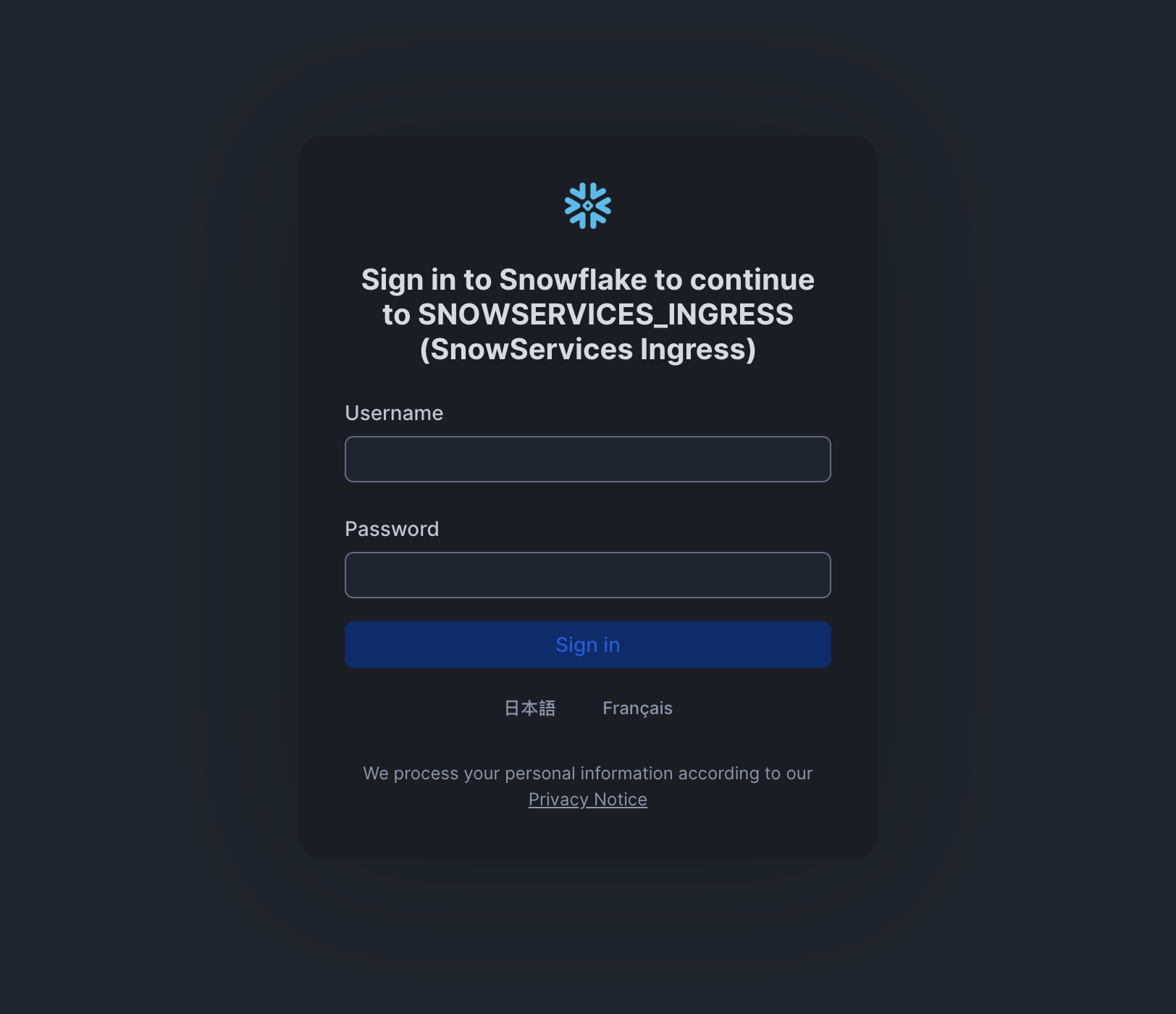
When using the app, Snowflake enforces authorization. Simply log in.
-
Click "Don't have an account?" and follow the email instructions to create a user account.
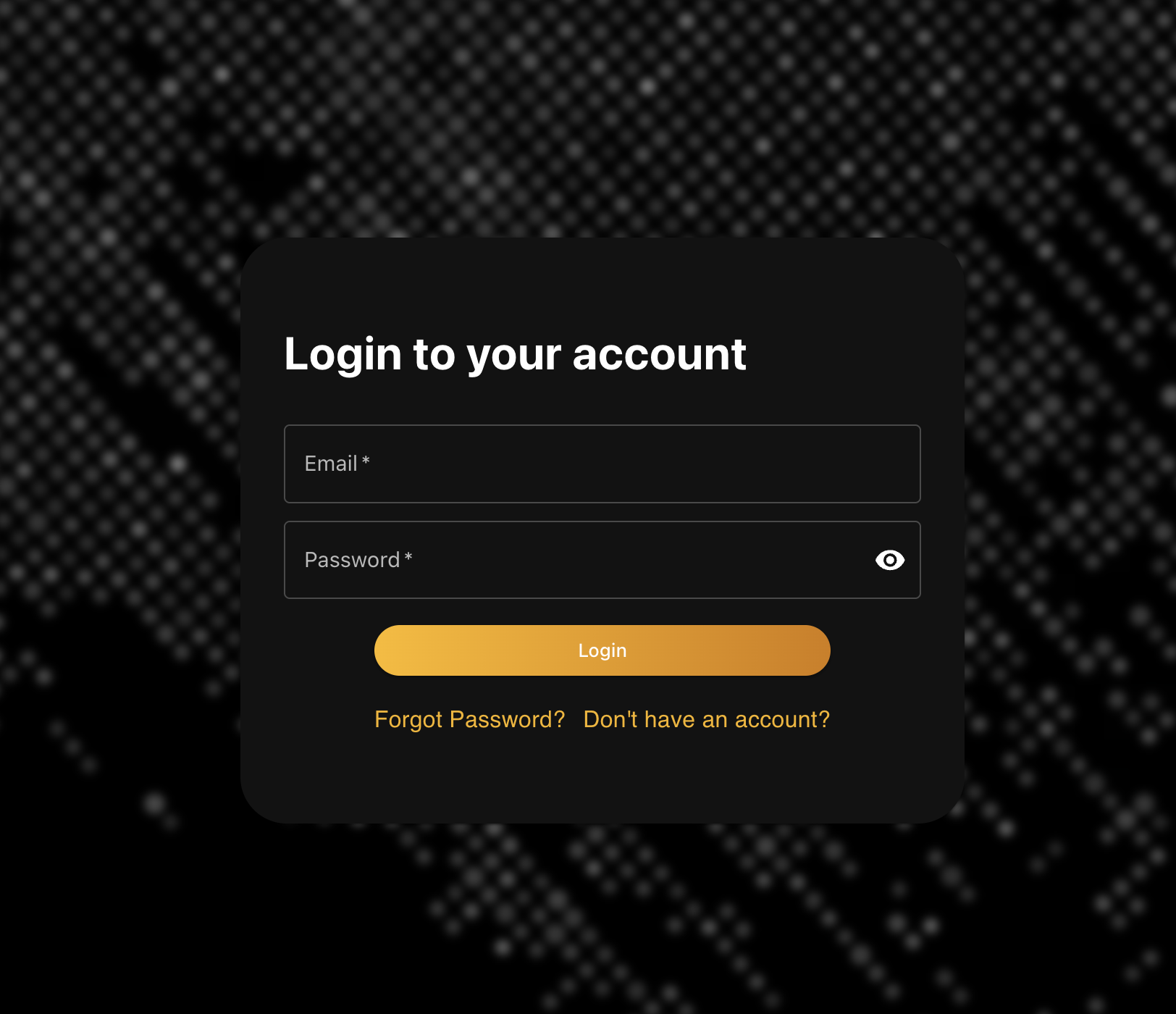
esna@ekai.local)The app ships with an initial admin user:
- Email:
esna@ekai.local - Password:
welcomeAdmin
Change this password immediately after installation and before granting access to other users.
Until AWS SES is enabled via External Access Integrations, use esna@ekai.local as the default login. Use this account for user creation and password resets in the app.
- The app exposes two roles:
ekai_app_adminandekai_app_user. Grant these as needed (see Additional Considerations below or refer to App Access Control).
Additional Considerations
Create a new Snowflake user and share its credentials with the Ekai team for support and setup. Grant this account the ekai_app_admin and ekai_app_user roles. The Ekai will help load your data and walk you through any remaining setup.