Local Deployment
Deploy ekai locally using Docker for testing and development. Perfect for evaluating the platform.
Overview
Local deployment uses Docker Compose to run ekai's containers:
Deployment Time: 15-30 minutes
System Requirements
| Component | Requirement |
|---|---|
| Docker | Docker Desktop 20.10+ or Docker Engine with Docker Compose |
| CPU | 4 cores minimum (8 recommended) |
| RAM | 8 GB minimum (16 GB recommended) |
| Disk | 20 GB available space |
| Ports | 80, 3000, 5432 must be available |
Prerequisites Checklist
Before starting, ensure you have:
- Docker installed and running
- Signed up at the ekai licensing portal
- Ports 80, 3000, and 5432 are not in use
- At least 8 GB of available RAM
Installation Steps
Step 1: Start from the licensing portal
Go to licensing.ekai.ai and follow the install instructions shown there.
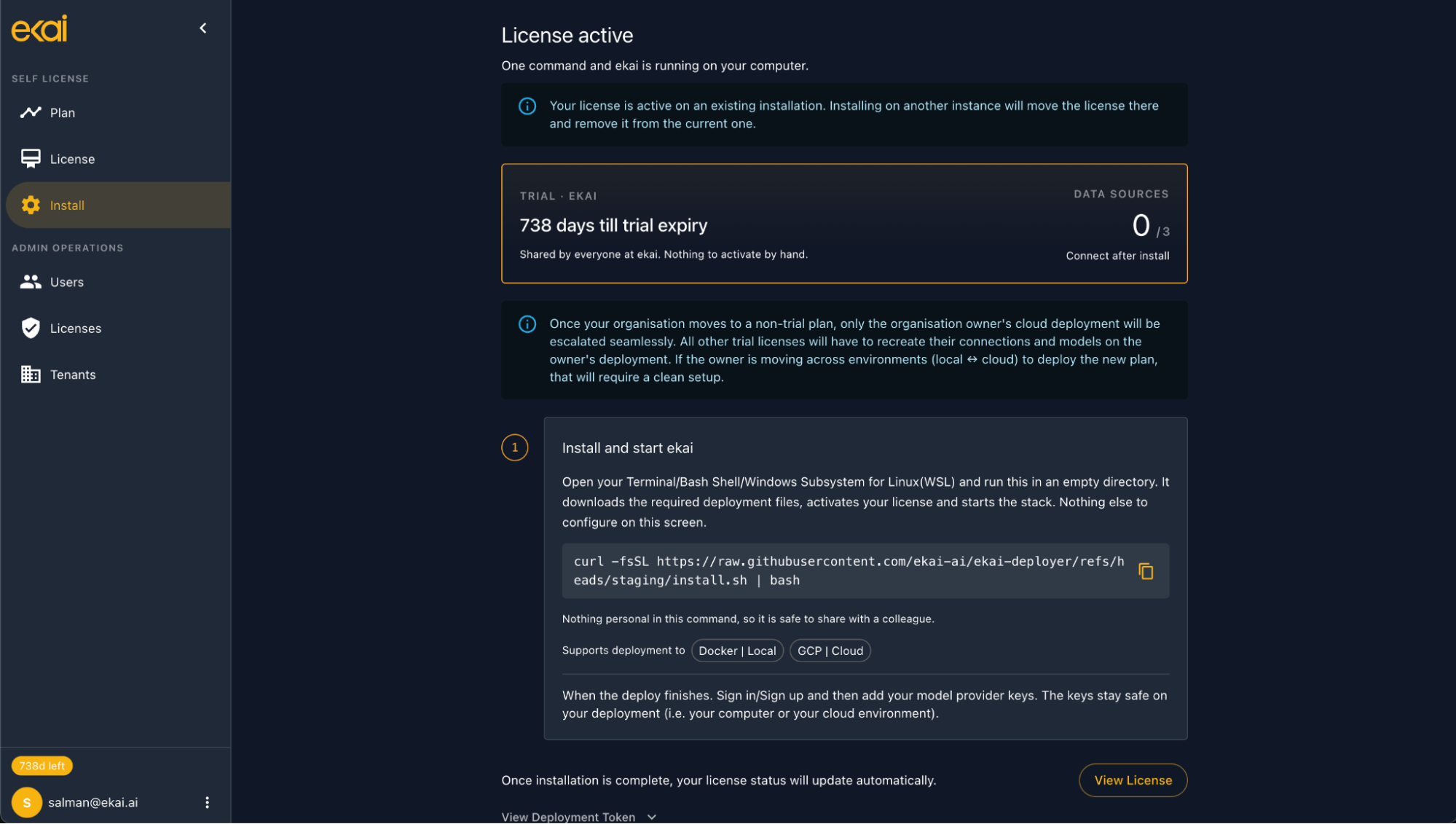
Step 2: Authenticate
- A browser window will open automatically
- Log in with your ekai credentials
- Authorize the deployment
- Return to the terminal
Step 3: Select Deployment Mode
When prompted, choose Local deployment:
Choose deployment type:
1) Local (Docker)
2) Cloud

Enter your choice [1-2]: 1
Step 4: Deploy
The install automatically:
- Pulls Docker images
- Runs
docker-compose up -d - Starts the containers
- Performs health checks
Step 5: Verify Installation
Check that all containers are running:
docker ps
You should see running containers such as:
ekai-postgresekai-backendekai-frontend
Expected Timeline
| Phase | Duration |
|---|---|
| Dependency check | ~1 minute |
| Sign-in and authorization | 2–5 minutes |
| Docker image download | 8–20 minutes |
| Container startup | ~1 minute |
| Total | 15–30 minutes |
Image download time depends on your connection. Docker images total may roughly amount to 5 GB.
Accessing Your Local Instance
Once installation is complete, open http://localhost in your browser and log in with the admin credentials you configured.
Managing Your Local Deployment
Start/Stop Services
cd <install-directory>

# Stop services
docker-compose stop

# Start services
docker-compose start

# Restart services
docker-compose restart

# Stop and remove containers
docker-compose down
View Logs
# All services
docker-compose logs -f

# A specific service
docker-compose logs -f ekai-<service-name>

# Example
docker-compose logs -f ekai-frontend
Update to Latest Version
# Pull latest images
docker-compose pull

# Recreate containers with new images
docker-compose up -d
Troubleshooting
Port Already in Use
If port 80 is already in use:
# Find process using port 80
sudo lsof -i :80

# Stop the conflicting service or edit docker-compose.yml
# Change: "8080:80" instead of "80:80"
Docker Not Running
# macOS: Start Docker Desktop from Applications

# Linux
sudo systemctl start docker
sudo systemctl enable docker
Containers Not Starting
Check logs for specific errors:
docker-compose logs -f ekai-<service-name>

# Example
docker-compose logs -f ekai-frontend
Common issues:
- Insufficient memory (increase Docker memory limit)
- Database connection errors (check credentials in
.env) - Missing environment variables (re-run the install from the licensing portal)
For more detailed troubleshooting, see Troubleshooting Guide.
Next Steps
- Post-Installation — Complete setup wizard and verify deployment
- Troubleshooting — Common issues and solutions
- FAQ — Frequently asked questions